So, you’ve decided to start editing your own YouTube videos. This isn’t just about stringing clips together; it’s about telling a story, and the real magic happens long before you drag a single file into your timeline.
A little prep work up front can save you hours of headaches down the line. Trust me, getting your digital house in order first is the secret to a smooth, efficient workflow instead of a chaotic mess.
Building Your YouTube Editing Foundation
First things first, you need the right tool for the job. Your editing software is a personal choice, and what works for a Hollywood pro might be overkill for you. It really boils down to your budget, current skill level, and where you see your channel going.
Choosing Your YouTube Video Editing Software
Picking an editor can feel overwhelming, but it doesn’t have to be. For anyone just starting out, there are some incredibly powerful free options that give you everything you need without the hefty price tag. As you get more comfortable, you can always graduate to the industry-standard software that the pros use. Here’s a quick breakdown to help you decide.
| Software | Best For | Pricing Model | Key Features |
|---|---|---|---|
| DaVinci Resolve | Beginners to Pros wanting an all-in-one tool | Free (with a paid Studio version) | Industry-leading color grading, advanced audio editing (Fairlight), robust effects (Fusion) |
| CapCut | Beginners & Social Media Creators | Free (with optional Pro subscription) | User-friendly interface, trendy effects & transitions, auto-captions, mobile & desktop versions |
| Adobe Premiere Pro | Intermediate to Professional Creators | Subscription (Adobe Creative Cloud) | Seamless integration with other Adobe apps (After Effects, Photoshop), extensive plugin support |
| Final Cut Pro | Mac Users (Beginner to Pro) | One-time Purchase | Optimized for Apple hardware, magnetic timeline for fast editing, excellent performance |
Don’t get too hung up on this choice initially. The skills you learn in one program—like making cuts, layering audio, and basic color correction—are transferable. The most important thing is to just pick one and start creating.
Organize Your Project Files Diligently
A messy project folder is the number one creativity killer. Seriously. There’s nothing worse than digging through a folder named “final_video_final_v2_USE_THIS_ONE” trying to find a specific audio file.
Create one main folder for each new video. Inside that, make a few simple sub-folders. My go-to structure looks like this:
- 01_Footage: All my raw video files live here. I often create sub-folders for A-Roll (my main talking shots) and B-Roll (all the extra, juicy cutaway shots).
- 02_Audio: This is for everything sound-related—external microphone recordings, voiceovers, background music, and sound effects.
- 03_Graphics: Logos, lower thirds, thumbnail assets, and any other images or animations get stored here.
- 04_Exports: The final, glorious, finished videos go right here.
This simple habit takes seconds to set up but pays off big time. You’ll always know exactly where everything is, which makes the whole process faster and way less frustrating.
Create a Simple Video Outline
You don’t need a full-blown Hollywood script, but going in blind is a recipe for a rambling, unfocused video. A basic outline or a simple shot list is your roadmap.
Jot down a few bullet points for your intro, the main points you want to cover, and your call-to-action at the end. This not only guides your filming but also gives you a clear structure to follow in the edit, ensuring your story flows logically and keeps viewers hooked. While you’re at it, think about what people might search for to find your video. For a deeper dive, our guide on SEO tips for beginners is a great place to start.
It’s clear that more people are making videos than ever before, but the hurdles are real. New stats show that 43% of creators feel they lack the in-house skills for filming and editing, and another 40% face budget constraints. This gap has spurred the growth of user-friendly, browser-based editors, proving that a solid foundation and a smart workflow are more important than having the most expensive gear. You can read more on the latest video marketing statistics to see just how much the landscape has changed.
Crafting Your Story on the Timeline
This is where the magic really starts to happen. With all your files sorted and ready to go, it’s time to dive into your timeline and start piecing together your story. This isn’t just about dropping clips in chronological order; it’s about building a rhythm, keeping the energy up, and making sure every single second earns its place.
Your first pass is what we call an assembly cut. Think of it as the rough draft of your video. Just drag all your primary footage—your “talking head” or main action shots (A-roll)—onto the timeline in the right sequence. Don’t get bogged down in perfecting it. The only goal here is to lay out the narrative backbone from start to finish.
Once your A-roll is laid out, you have a skeleton. Now, the real editing begins.
Mastering the Art of the Cut
The line between a choppy, amateur video and a polished, professional one often comes down to one thing: pacing. Your job now is to be absolutely ruthless. Cut out anything and everything that doesn’t push the story forward. That means getting rid of long, awkward pauses, filler words like “um” and “uh,” and any moment where the energy just sags.
To make your edits feel incredibly smooth and natural, you’ll want to master J-cuts and L-cuts.
- J-Cut: This is when the audio from the next clip starts a moment before the video switches. It’s a fantastic way to tease what’s coming next or introduce a speaker just before they appear on screen.
- L-Cut: Here, the audio from your current clip continues playing over the start of the next clip. This technique is brilliant for showing someone’s reaction as they listen to the person who was just speaking.
These two simple cuts are game-changers. They stop your edits from feeling so abrupt and instead create a fluid, conversational flow that pulls the viewer in. You’re basically guiding your audience’s eyes and ears exactly where you want them to go.
Pro Tip: The ‘blade’ or ‘razor’ tool is your best friend on the timeline. Get comfortable with its keyboard shortcut. The faster you can slice away the fluff, the more time you can spend on the fun, creative parts of the edit.
Layering B-Roll and Graphics for Impact
With your A-roll nice and tight, it’s time to bring it to life with B-roll. B-roll is simply any extra footage you use to visually explain what you’re talking about. If you mention a specific product, show a slick close-up of it. If you’re telling a story about a trip, cut to footage of the location.
B-roll isn’t just filler—it’s a critical tool for keeping people watching. A good rule of thumb is to change the visual on screen every 5-10 seconds. This could be a cut to B-roll, a subtle zoom-in on your face, or a graphic popping up. Each change creates a “pattern interrupt,” which keeps the viewer’s brain from getting bored and clicking away.
Here’s a straightforward way to add B-roll effectively:
- Scan your A-roll: As you watch your main footage, listen for keywords or concepts that would be stronger with a visual aid.
- Find the right shot: Grab the B-roll clip you want from your media bin and drag it onto a new video track, right above your A-roll.
- Trim and position it: Line up the B-roll clip so it covers the exact part of your A-roll you want to illustrate.
- Add graphics: Use simple on-screen text or motion graphics to call out important stats, list key points, or introduce a new section.
This simple flowchart shows how this foundational work—choosing your software, getting organized, and having a plan—comes before you even get to this stage.
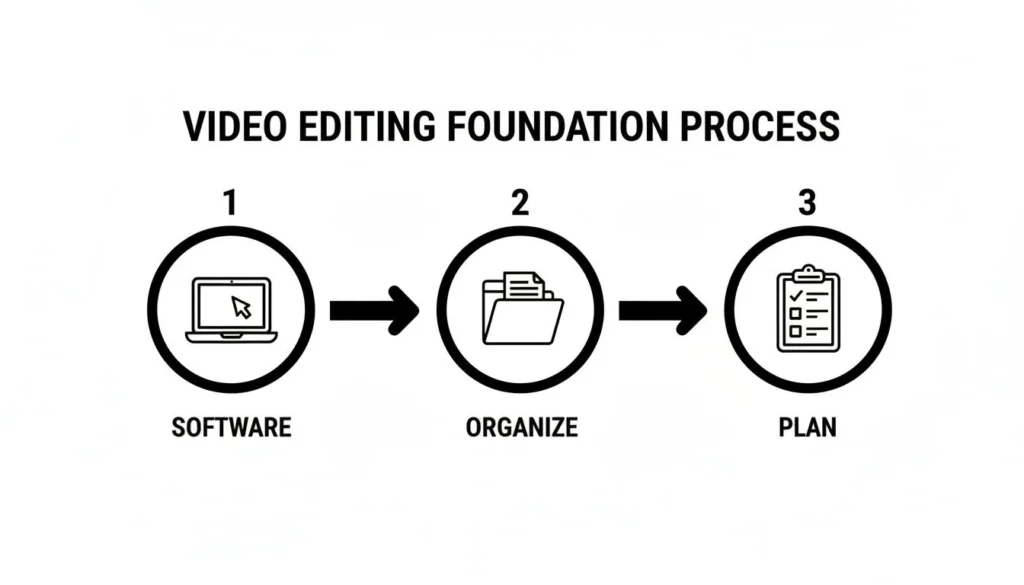
Nailing this prep work makes the entire editing process smoother and more creative.
By layering all these elements, you transform a basic talking-head video into something dynamic and engaging. You’re no longer just telling your audience something; you’re showing them, which is infinitely more powerful. This constant dance of cutting, layering, and pacing is the absolute core of learning how to edit videos for YouTube.
Polishing Your Audio and Color
You’ve got the story assembled and the pacing feels right. Now it’s time for the real magic—the final polish that turns a good video into a great one. This is where we tackle audio and color, two things that can instantly separate a professional-looking YouTube video from an amateur one.
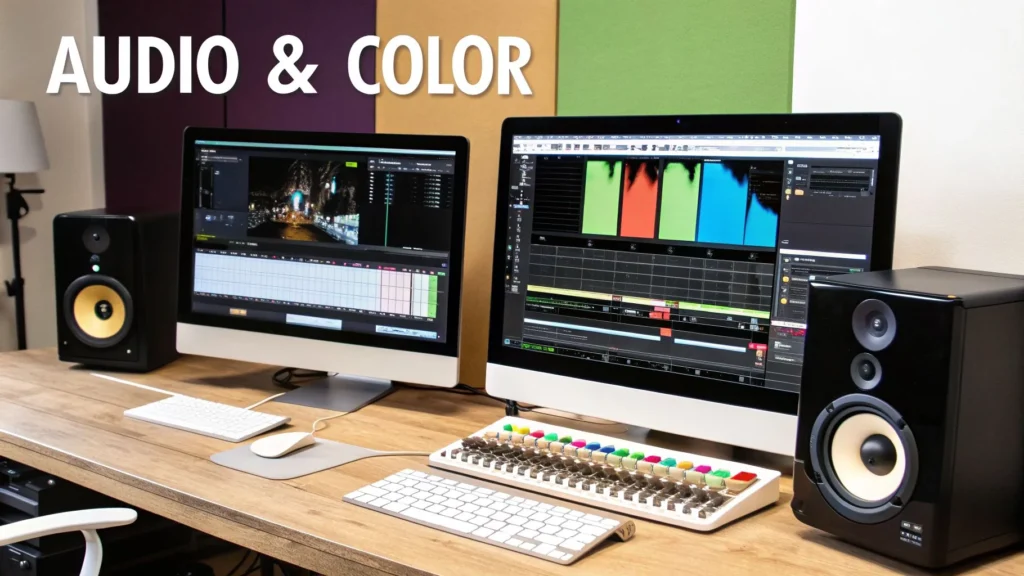
Honestly, a video with incredible visuals can be completely torpedoed by bad sound. It’s the first thing viewers notice, so let’s start there.
Think of your audio as a three-way conversation between your voice, the background music, and any sound effects. The goal is to make sure they’re all working together, not screaming over each other. Your voice should always be the star of the show.
Achieving a Clean Audio Mix
First things first, your main vocal track needs to be clean and clear. The simplest starting point is normalization, which just brings the overall volume of your dialogue up to a consistent, standard level. Most editing software has a one-click tool for this that works perfectly.
Next, hunt down any annoying background noise. That persistent hum from your computer fan or AC unit? A basic noise reduction filter can work wonders. Just be careful not to overdo it. Pushing these tools too hard can make your voice sound thin, watery, and unnatural.
With your dialogue sounding crisp, you can start layering in background music. Here’s my go-to workflow:
- Choose the Right Vibe: Find a track that actually fits the mood of your video. The YouTube Audio Library has a massive collection of free options, while services like Epidemic Sound offer premium libraries for a subscription fee.
- Set Your Levels: Here’s the golden rule: background music should be felt, not just heard. I usually start by setting the music’s volume somewhere between -18dB and -25dB below my main dialogue.
- Use Ducking: Most modern editors have an “auto-ducking” feature, and it’s a lifesaver. It automatically dips the music volume whenever someone is talking and brings it back up in the quiet moments. It makes your mix sound dynamic without a ton of manual effort.
Finally, a few well-placed sound effects (SFX) can add a ton of impact. A little “whoosh” when a graphic flies on screen or a “click” when you point something out makes the whole video feel more alive.
Bad audio is the fastest way to lose a viewer. If they have to strain to hear you or get annoyed by a constant buzz, they’re gone. I always tell creators to spend just as much time on their audio as they do on their visual edits.
The Power of Color Correction and Grading
Once your audio is locked in, it’s time to shift focus to the visuals. Color can feel like a really complex topic, but it really boils down to two key steps: color correction and color grading.
Color correction is the technical fix. It’s all about getting your footage to look natural and consistent from one clip to the next. Think of it as the visual version of removing background noise from your audio. The big three things to fix here are white balance, exposure, and saturation.
- White Balance: Makes sure the white things in your video actually look white, not tinted blue or orange.
- Exposure: This is for fixing clips that are either too dark or completely blown out and too bright.
- Saturation: Controls the intensity of your colors, so they look natural instead of washed-out or cartoonishly vibrant.
From Correcting to Creating a Vibe
After your footage is corrected and looks true-to-life, you get to the fun part: color grading. This is where you inject your personality and develop a signature look for your channel. It’s exactly what Hollywood does—using cool, blue tones for a sci-fi thriller or warm, golden hues for a romantic comedy.
An easy way to jump into color grading is by using LUTs (Look-Up Tables). A LUT is just a preset color profile you can drop onto your footage to get a specific look instantly. You can find tons of LUT packs online that will give you a cinematic, vintage, or super-vibrant look with a single click.
Even small tweaks can have a massive impact. Bumping up the contrast just a little can make your image “pop” off the screen, while slightly desaturating the colors can create a more serious, moody tone.
The good news is that AI is making many of these polishing tasks way more accessible. In fact, a surprising 51% of video marketers are already using AI for video creation or editing. These tools are fantastic for handling things like basic color correction or generating captions, which frees you up to focus on the more creative decisions. If you’re curious, you can dig into more trends like this in these recent video marketing statistics. It just goes to show how essential—and achievable—great audio and color have become.
Adding Titles, Graphics, and Effects
Your video’s story is locked in, the audio is clean, and the color looks great. Now it’s time for the final layer of polish—the details that take a video from good to professional. This is where we add the text, graphics, and effects that guide your audience, reinforce your brand, and just make the whole thing easier to watch.
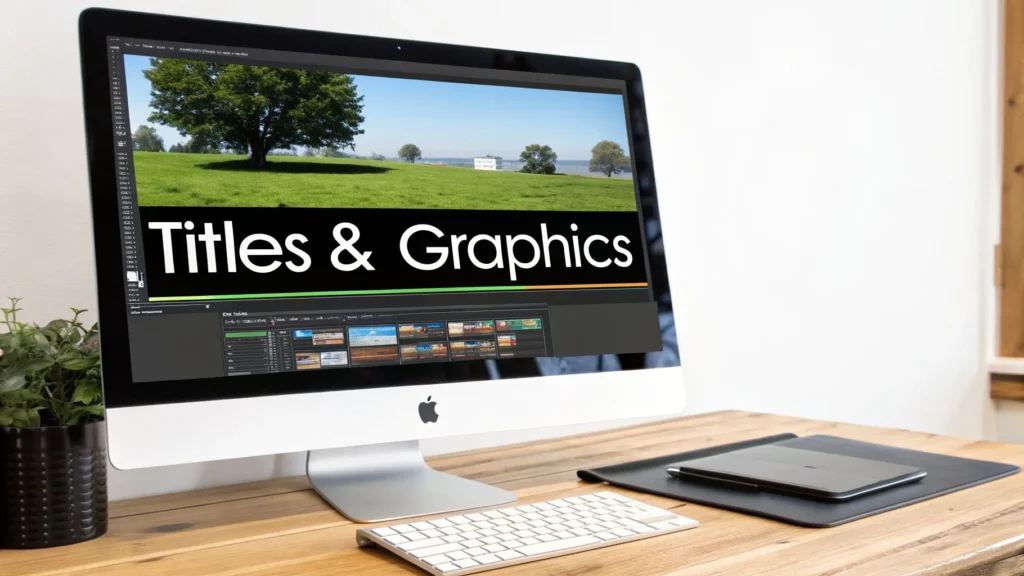
This isn’t about just slapping flashy animations on screen for the sake of it. Every graphic should serve a purpose, communicating key information clearly without distracting from your core message.
Designing On-Screen Text and Graphics
Text elements like titles and lower thirds are your best friend for giving viewers context. A lower third, for example, is that classic graphic at the bottom of the screen that introduces a person or a topic. The goal is always to keep these elements clean, on-brand, and incredibly easy to read.
Here are a few hard-and-fast rules I always follow for on-screen text:
- High Contrast is King: Your text absolutely must pop against the background. A thin, dark outline or a subtle drop shadow can be a lifesaver for making white text readable over a busy shot.
- Keep it Simple: Stick with a clean, sans-serif font. It needs to be legible on everything from a massive 4K TV to a tiny phone screen.
- Be Brief: On-screen text is meant to be scanned, not read like a book. Use it for names, locations, or key takeaways—not long, complex sentences.
A rookie mistake I see all the time is leaving a title or graphic on screen for way too long. A good rule of thumb is to show it just long enough for a viewer to read it twice, then fade it out. This keeps the video’s momentum going and shows you respect your audience’s time.
When it comes to calls-to-action (CTAs)—like asking viewers to subscribe or check out another video—timing is everything. Don’t throw a massive “SUBSCRIBE” graphic over the most important part of your video. Instead, place these prompts near the end or during a natural pause in the action.
Using Transitions with Purpose
Transitions are the bridges that connect your clips, and they have a massive impact on your video’s pace and vibe. Your editing software probably has a library full of wild star wipes and page peels, but let me tell you a secret: 99% of the time, a simple cut is your best option. A hard cut is clean, direct, and keeps the energy up.
That said, sometimes a different transition is the right tool for the job.
- Dissolve: This is a gentle fade from one shot to the next. It’s perfect for showing a passage of time or creating a softer, more reflective mood.
- Fade to Black: Fading a shot completely to black is a powerful signal. It tells the audience that a major chapter is ending or the whole video is concluding. It gives them a moment to breathe and process.
Unless you have a very specific stylistic reason (like a high-energy montage), avoid those distracting, flashy transitions. More often than not, they just scream “amateur” and pull your viewer right out of the experience.
The Non-Negotiable Step: Adding Captions
In today’s world, subtitles and closed captions are not a “nice-to-have”—they’re a must. They make your videos accessible to viewers who are deaf or hard of hearing, but just as importantly, a massive chunk of your audience watches videos with the sound off. Adding captions is one of the easiest ways to boost engagement and broaden your reach.
The good news? This is no longer the manual, soul-crushing task it used to be. AI-powered tools have completely changed the game.
Many modern editing programs like DaVinci Resolve and Adobe Premiere Pro now have built-in, one-click transcription features that generate captions automatically. You can also use dedicated services like Descript, which not only transcribes your video with incredible accuracy but lets you edit the video by just editing the text. You can find more tools in our guide on the best graphic design software for beginners, many of which have features that complement video workflows.
This final layer of detail—from clean titles to essential captions—is what separates the pros from the amateurs and builds a loyal audience that keeps coming back for more.
Exporting Your Video for YouTube Success
You’ve made it. The timeline is locked, the audio is crisp, and the colors are just right. You’re standing at the finish line, but there’s one last, crucial step: the export. This is where so many creators accidentally sabotage their own work. The wrong export settings can take a beautifully edited video and crush it into a pixelated mess.
Think of exporting as carefully packaging your video for its trip to YouTube’s servers. Your job is to hand over a high-quality file that gives their compression system the best possible material to work with. Get this right, and your viewers will see your video exactly as you intended.
Choosing the Best YouTube Export Settings
Thankfully, YouTube has made this pretty straightforward. The platform is incredibly good at processing video, so you don’t need to get lost in a sea of complicated settings. The main goal is to deliver a file that preserves detail without being absurdly large.
You can find these options in the “Export” or “Render” menu of any modern editing software. Here’s a quick rundown of what you should be looking for.
Recommended YouTube Export Settings for 2026
This table breaks down the optimal settings to ensure your video looks its best, whether you’re working in 1080p or 4K. Sticking to these recommendations will give YouTube’s algorithm the highest quality source file to process.
| Setting | Recommendation for 1080p | Recommendation for 4K |
|---|---|---|
| Codec | H.264 (sometimes called AVC) | H.264 (or HEVC/H.265 for smaller files) |
| Resolution | 1920 x 1080 | 3840 x 2160 |
| Frame Rate | Match your source footage (e.g., 24, 30, 60 fps) | Match your source footage (e.g., 24, 30, 60 fps) |
| Bitrate | 10-15 Mbps (for standard frame rates) | 45-65 Mbps (for standard frame rates) |
| Audio | AAC Codec, 320 kbps Bitrate, 48 kHz Sample Rate | AAC Codec, 320 kbps Bitrate, 48 kHz Sample Rate |
These settings are the industry standard for a reason—they balance quality and file size perfectly for the platform.
Pro Tip: Here’s a trick many seasoned creators use. Even if you edit in 1080p, try exporting your video in 4K. When YouTube sees a 4K file, it often uses its more advanced VP9 codec for processing. The result? Your 1080p video will look noticeably sharper and cleaner to viewers, even those watching on non-4K screens. It’s a simple way to gain a slight edge in visual quality.
Optimizing Your Video for the YouTube Algorithm
A perfect video file is just the start. Now you need to give YouTube the right signals—the metadata—so its algorithm knows what your video is about and who to show it to. This is where your role shifts from editor to marketer. Our deep dive into video marketing best practices covers this side of the coin in much more detail.
- A Compelling Title: Your title has to pull double duty. It needs to be searchable with your main keyword, but also spark enough curiosity to earn a click.
- A Keyword-Rich Description: The first couple of lines are prime real estate. Summarize the video’s value and naturally weave in your primary and secondary keywords. Use the rest of the space for links, timestamps, and extra context.
- Strategic Tags: While they don’t carry the weight they once did, tags are still a useful tool for helping YouTube categorize your video. Add your main keyword, some variations, and other relevant topics you cover.
Designing a Click-Worthy Thumbnail
Your thumbnail is your video’s billboard on a very crowded street. It’s competing for attention against dozens of others, so it absolutely has to pop. A winning thumbnail usually has three things: a clean, high-contrast image (a human face with a clear emotion works wonders), big, bold text that’s easy to read on any device, and consistent branding elements.
The key is to create intrigue without being misleading. Your thumbnail should be an honest, yet irresistible, preview of the value inside your video.
In an era where AI tools can churn out mediocre content by the truckload, this blend of technical precision and strategic creativity is what separates successful creators from the rest. This became especially true after YouTube’s 2026 crackdown on low-quality ‘AI slop,’ where 16 top channels with a combined 35 million subscribers were taken down. It was a clear signal that the platform is prioritizing authentic, well-crafted content. Your attention to detail during export and upload is a massive part of that quality equation, and you can find more insights on what creators should expect to change on YouTube.
A Few Common YouTube Editing Questions
As you start editing more, you’ll inevitably run into some recurring questions. It happens to everyone. Moving beyond simple cuts and trims brings a new set of challenges and “what-if” scenarios that can feel a bit overwhelming at first.
This section is all about tackling those common hurdles head-on. Think of it as a quick-reference guide to solve those nagging problems that pop up when you’re deep in a project, so you can edit with more confidence.
How Long Should It Take to Edit a 10-Minute Video?
This is the classic “how long is a piece of string?” question, but I can give you a solid baseline to work from. For most people starting out, a good rule of thumb is to budget 1 to 2 hours of editing for every minute of final video. So, for a polished 10-minute YouTube video, you could be looking at anywhere from 10 to 20 hours of work.
Of course, that time can swing wildly depending on the video’s complexity. A straightforward talking-head video with a few simple cuts will be on the faster end. On the other hand, if you’re creating a documentary-style piece with tons of B-roll, motion graphics, and detailed sound design, you’ll easily push toward that 20-hour mark, or even past it.
The good news? You get faster. As you develop your workflow, learn your keyboard shortcuts, and build an instinct for storytelling, that time will naturally shrink. The goal isn’t just speed for speed’s sake; it’s about building an efficient process. The speed will follow.
What Is the Best Way to Find Royalty-Free Music?
First, a word of warning: using popular, copyrighted music is the quickest way to get a copyright strike. It can lead to your video being demonetized, muted, or even taken down. The only sustainable way forward is to use music you have the license for.
Your first stop should absolutely be the YouTube Audio Library. It’s a fantastic, completely free resource built right into YouTube Studio. You’ll find thousands of tracks and sound effects you can use without ever worrying about copyright claims.
If you need a wider or more curated selection, paid subscription services are the next step up.
- Epidemic Sound: Famous for its huge, high-quality library. The licensing is simple and covers you across all your social platforms.
- Artlist: Another great option with a straightforward license. Any track you download while subscribed is yours to use in your videos forever, even if you cancel your subscription later.
When you’re picking a track, think about the emotion you want to create. Are you going for an energetic, upbeat vibe, or something more reflective? Always drop the music into your timeline and listen to it with your footage before you commit. You want it to complement the visuals, not fight them.
How Do I Make My Videos More Engaging with Editing?
Engagement is all about grabbing and holding your viewer’s attention. A long, static shot is a surefire way to make them click away.
A key concept here is the “pattern interrupt.” You need to change something on screen every 5-10 seconds to keep the viewer’s brain from zoning out. It doesn’t have to be a huge change—a subtle zoom-in, a cut to a B-roll clip, or a simple graphic popping up is all it takes to reset their attention.
Beyond just changing the shot, focus on these three things to keep people watching:
- Be Ruthless with Pacing: Cut out every single unnecessary pause, filler word (“uh,” “um,” “like”), and rambling thought. A tight edit feels energetic and professional, and it shows you respect your viewer’s time.
- Add Some Sound Design: This makes a huge difference. Add subtle sound effects to your graphics and on-screen actions. A simple “whoosh” when text appears or a “click” sound when you show a button being pressed makes the whole video feel more dynamic and polished.
- Master Your J-Cuts and L-Cuts: As we covered earlier, these are non-negotiable for smooth edits. Letting the audio from the next clip start before the video cuts (a J-cut) or letting the audio from the previous clip continue over the new shot (an L-cut) makes your video flow beautifully. It’s one of the biggest things that separates amateur edits from professional ones.
At maxijournal.com, we publish daily insights at the intersection of technology, arts, and business to help you stay informed. For more guides and fresh commentary, explore our latest articles at https://maxijournal.com.
Discover more from Maxi Journal
Subscribe to get the latest posts sent to your email.