
Stepping into the world of visual creation is an exciting prospect, but the sheer number of tools available can feel overwhelming. Whether you’re aiming to design eye-catching social media posts, craft a personal logo, or simply bring your creative ideas to life, choosing the right starting point is crucial. This guide is designed to demystify the options and help you find the best graphic design software for beginners to match your specific goals.
This isn’t just a list; it’s a practical roadmap. We move beyond marketing hype to provide an honest look at what each platform truly offers, from template-driven apps like Canva to more robust editors like Affinity Designer. We’ll break down the key differences between various types of software, helping you understand which tool is best suited for social media graphics versus digital illustration or brand identity projects.
Inside, you will find a detailed breakdown for each piece of software, including:
- Platform availability and cost
- An honest beginner-friendliness score
- Key features and ideal use cases
- Quick-scan pros and cons
- Direct links to tutorials and learning resources
Our goal is to give you a clear, comprehensive overview so you can confidently select a tool that not only fits your current needs but also provides a foundation to grow your skills. By the end, you’ll have all the information required to stop searching and start creating.
1. Adobe Express
Adobe Express is a standout choice for anyone seeking powerful yet approachable graphic design software for beginners. It serves as Adobe’s answer to template-driven tools, offering a web and mobile platform perfect for creating social media posts, simple videos, flyers, and other marketing materials without a steep learning curve. Its core strength lies in its seamless integration of professional-grade assets into an incredibly user-friendly interface.
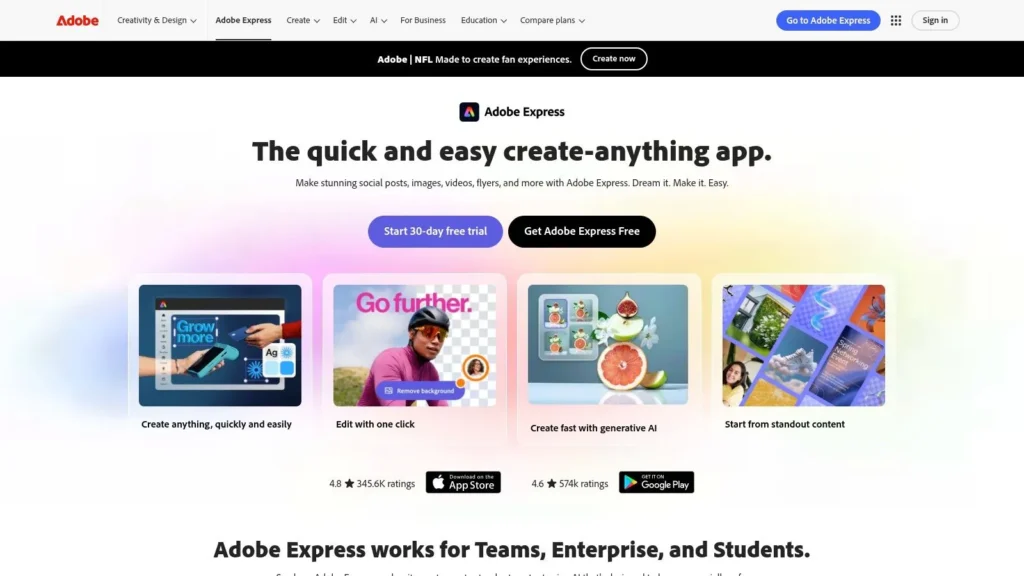
Unlike some competitors that can feel restrictive, Express provides an on-ramp into the professional Adobe ecosystem. While the free plan is generous, the premium subscription unlocks millions of Adobe Stock photos, videos, and music tracks, plus features like one-click background removal and brand kits. This makes it an excellent tool for small businesses and content creators aiming for a polished look.
Platform Breakdown
| Aspect | Details |
|---|---|
| Cost | Free plan available. Premium plan starts at $9.99/month, unlocking all assets and advanced features. |
| Beginner-Friendliness | Excellent. The template-based workflow and intuitive drag-and-drop interface are ideal for non-designers. |
| Ideal Use Cases | Social media graphics, quick video edits, event flyers, web banners, and brand-consistent marketing assets. |
| Key Features | AI-powered tools, vast template and asset libraries, one-click resizing, background removal, social scheduler. |
Practical Tips & Resources
For those creating social content, Express’s scheduler and resizing tools are game-changers. You can design an Instagram post and instantly reformat it for a Facebook banner or a Pinterest Pin, saving significant time. If you want to maximize your efforts, explore how professionally designed graphics can help increase engagement on Instagram and other platforms.
- Pros:
- Very low learning curve
- Works seamlessly across browser and mobile
- Access to high-quality Adobe Stock assets
- Cons:
- Limited advanced illustration and layout controls
- Best features are locked behind the premium subscription
Get started at: https://www.adobe.com/express
2. Canva
Canva is arguably the most recognizable name in user-friendly graphic design, and for good reason. This browser-based platform pioneered the drag-and-drop design model, making it incredibly simple for absolute beginners to create professional-looking visuals. Its core appeal is a vast library of templates and design elements, which removes the intimidation factor of a blank canvas and provides a solid foundation for any project.
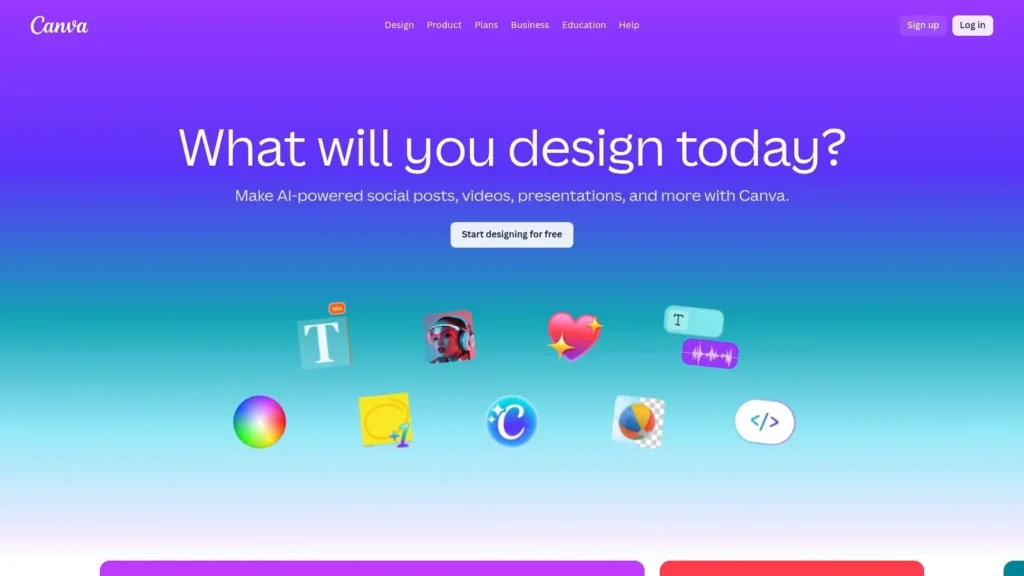
Unlike more technical software, Canva is built for speed and collaboration. Its real-time editing features make it a favorite for teams, while its AI-powered “Magic Studio” tools help automate and inspire the design process. Whether you’re creating a presentation, social media content, or marketing materials, Canva offers a comprehensive suite of tools that work seamlessly across web, desktop, and mobile devices, solidifying its place as a top graphic design software for beginners.
Platform Breakdown
| Aspect | Details |
|---|---|
| Cost | Robust free version. Canva Pro starts around $14.99/month for individuals. Teams pricing varies. |
| Beginner-Friendliness | Excellent. The platform is exceptionally intuitive, designed for non-designers to achieve great results quickly. |
| Ideal Use Cases | Social media posts, presentations, resumes, marketing flyers, blog graphics, and basic video editing. |
| Key Features | Massive template and element libraries, real-time collaboration, Brand Kits, and AI “Magic Studio” features. |
Practical Tips & Resources
Canva is fantastic for establishing a consistent visual identity. Use the Brand Kit feature (on paid plans) to save your logos, brand colors, and fonts, ensuring every design stays on-brand. This is especially useful for content creators; if you are looking to create custom graphics for your online presence, learning how to start a blog is a great first step where Canva can immediately add value.
- Pros:
- Extremely fast to learn and use
- Excellent collaboration and brand management tools
- Huge library of templates, photos, and elements
- Cons:
- Lacks the fine-tuned precision of professional vector software
- Subscription prices can change; verify current rates
Get started at: https://www.canva.com
3. Affinity by Canva
The recent acquisition of Affinity by Canva has created a powerhouse option in the graphic design software for beginners space. The Affinity suite, known for its professional-grade vector, pixel, and page layout tools, is now available as a single all-in-one desktop application completely free of charge. This move provides an unprecedented on-ramp for newcomers to learn industry-standard design principles without any financial commitment.
Unlike purely cloud-based tools, Affinity operates as a robust offline desktop app, giving users full control and performance. The integration with Canva means optional, advanced AI features can be unlocked by connecting a Canva premium account. This unique hybrid model offers the best of both worlds: a free, professional-level foundation with the option to tap into cloud-powered AI enhancements.
Platform Breakdown
| Aspect | Details |
|---|---|
| Cost | The all-in-one desktop app is now free forever. Optional AI features require a Canva premium plan. |
| Beginner-Friendliness | Moderate. Steeper than template-based apps, but the no-cost entry makes it perfect for dedicated learners. |
| Ideal Use Cases | Vector illustration, photo editing, publication design, UI mockups, and creating complex print materials. |
| Key Features | Unified Pixel, Vector, and Layout studios; Native support for PSD, AI, PDF; Offline desktop functionality. |
Practical Tips & Resources
Start by focusing on one “Persona” (e.g., Designer for vector art) to avoid feeling overwhelmed. The interface is highly customizable, so spend time arranging panels and toolbars to fit your workflow. Because Affinity is a professional-grade tool, understanding foundational concepts like layers, paths, and pixels will be key to your success.
- Pros:
- Professional-level tools with no license fee
- Works offline on Windows and macOS
- Offers a long-term learning path from beginner to pro
- Cons:
- Some AI features are locked behind a paid Canva plan
- The iPad/tablet version’s future status is pending
Get started at: https://affinity.studio
4. Adobe Photoshop Elements
Adobe Photoshop Elements is a powerful yet accessible entry point into photo editing, making it an excellent piece of graphic design software for beginners. Unlike its subscription-based big brother, Photoshop Elements is sold as a one-time purchase, offering a simplified, consumer-focused experience for organizing and enhancing photos. Its core strength lies in “Guided Edits,” which provide step-by-step instructions for complex tasks like removing objects, adding creative blurs, or colorizing photos.
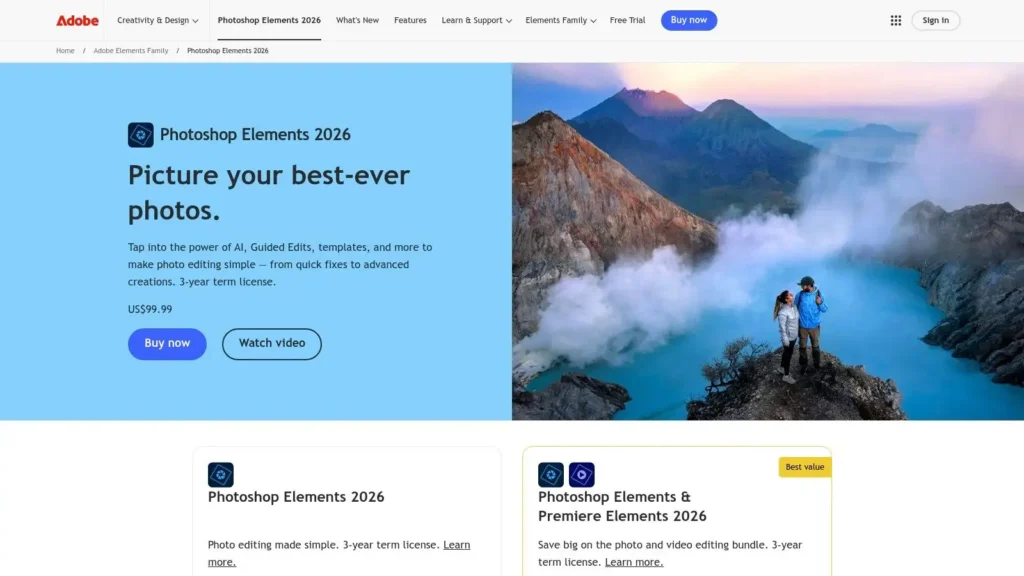
This desktop software (for Windows/macOS) is perfect for individuals who want to master photo manipulation without the overwhelming complexity of professional tools. It uses AI assists to automate common adjustments, helping users achieve high-quality results quickly. The inclusion of the Organizer app makes managing thousands of photos a breeze, while companion web and mobile apps (currently in beta) allow for easy sharing of your creations.
Platform Breakdown
| Aspect | Details |
|---|---|
| Cost | One-time purchase of $99.99 USD. Note: The license is non-renewing and valid for a fixed term (e.g., three years). |
| Beginner-Friendliness | Excellent. The Guided Edits feature is specifically designed to teach beginners through hands-on, interactive tutorials. |
| Ideal Use Cases | Photo retouching and enhancement, creating photo collages, preparing images for print, and managing large photo libraries. |
| Key Features | AI-powered Guided Edits, dedicated Organizer app, companion web/mobile apps, one-click adjustments, creative effects. |
Practical Tips & Resources
Start by exploring the “Guided” mode to learn the ropes. Tasks like “Perfect Portrait” or “Object Removal” break down professional techniques into simple, manageable steps. Once you are comfortable, switch to “Expert” mode to apply your new skills with more creative freedom. The Organizer app is also invaluable; use it to tag faces, places, and events to quickly find the exact photo you need for a project.
- Pros:
- No subscription fee; one-time purchase
- Guided Edits are fantastic for learning
- Powerful photo organization tools included
- Cons:
- Less powerful than full Photoshop for advanced design work
- License is for a fixed term, not truly perpetual
Get started at: https://www.adobe.com/products/photoshop-elements.html
5. CorelDRAW Graphics Suite
CorelDRAW Graphics Suite is a long-standing powerhouse in the design world, offering an all-in-one toolkit particularly strong for vector illustration, page layout, and typography. While often seen as a professional tool, its structured tutorials and clear workflow make it a viable, if ambitious, choice for beginners serious about learning print design and branding fundamentals. It stands out by providing a comprehensive suite of applications within a single package.
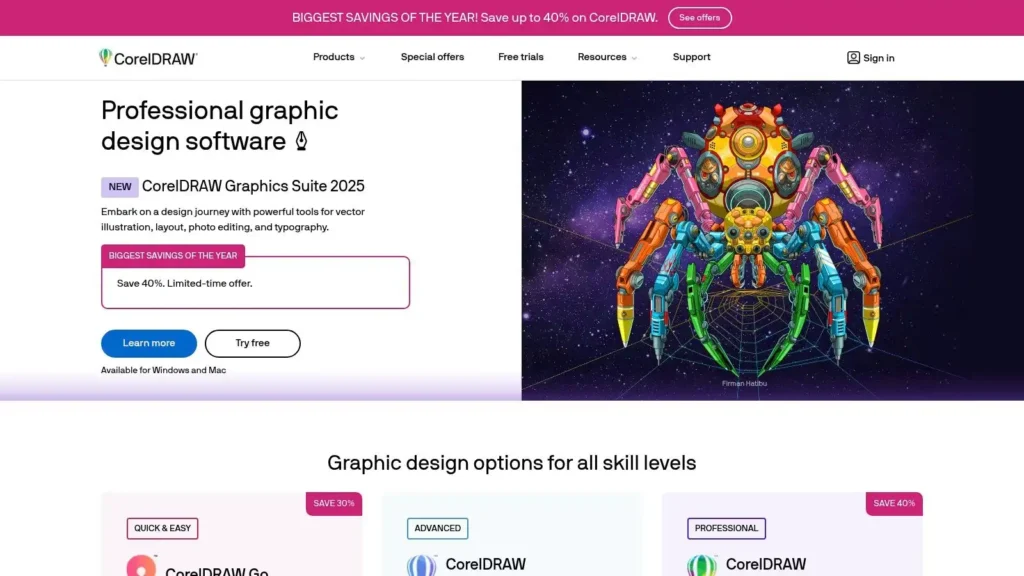
Unlike purely subscription-based models, CorelDRAW offers flexibility with both a monthly/annual subscription and a one-time perpetual license, which appeals to users who prefer to own their software. The 15-day free trial provides ample time to explore its capabilities for creating logos, brochures, and multi-page documents. It’s an excellent piece of graphic design software for beginners who want to invest in a skill set that translates directly to professional print production and branding projects.
Platform Breakdown
| Aspect | Details |
|---|---|
| Cost | 15-day free trial. Subscription starts around $39.08/month. One-time purchase option available for a single upfront cost. |
| Beginner-Friendliness | Moderate. Steeper learning curve than template-based tools but has a logical workflow and extensive in-app learning resources. |
| Ideal Use Cases | Logo design, print materials (brochures, flyers), technical illustration, multi-page layouts, and typography-heavy projects. |
| Key Features | Powerful vector illustration tools, comprehensive page layout, photo-editing (Corel PHOTO-PAINT), font management, and robust print output. |
Practical Tips & Resources
New users should take full advantage of the free trial and the built-in “Hints” docker, which provides context-sensitive tips for any selected tool. Start by focusing on the core vector tools like the Pen and Shape tools to master creating and manipulating custom graphics. The suite’s strong print-focused features, like its advanced color management, are perfect for projects destined for physical production.
- Pros:
- Robust print and layout orientation with a clear learning path
- Flexible purchasing (subscription and one-time) and trial availability
- All-in-one suite with vector, photo, and layout tools
- Cons:
- Interface and workflows differ from Adobe products, may require relearning
- Feature differences exist between one-time purchase and subscription tiers
Get started at: https://www.coreldraw.com
6. Inkscape
Inkscape is the leading open-source champion in the world of vector graphics, making it an exceptional, zero-cost choice for anyone looking for graphic design software for beginners. As an SVG-native editor, it provides a powerful platform for creating scalable designs like logos, icons, and illustrations. Unlike subscription-based software, Inkscape is completely free forever, backed by an active community that ensures regular updates and a wealth of learning resources.
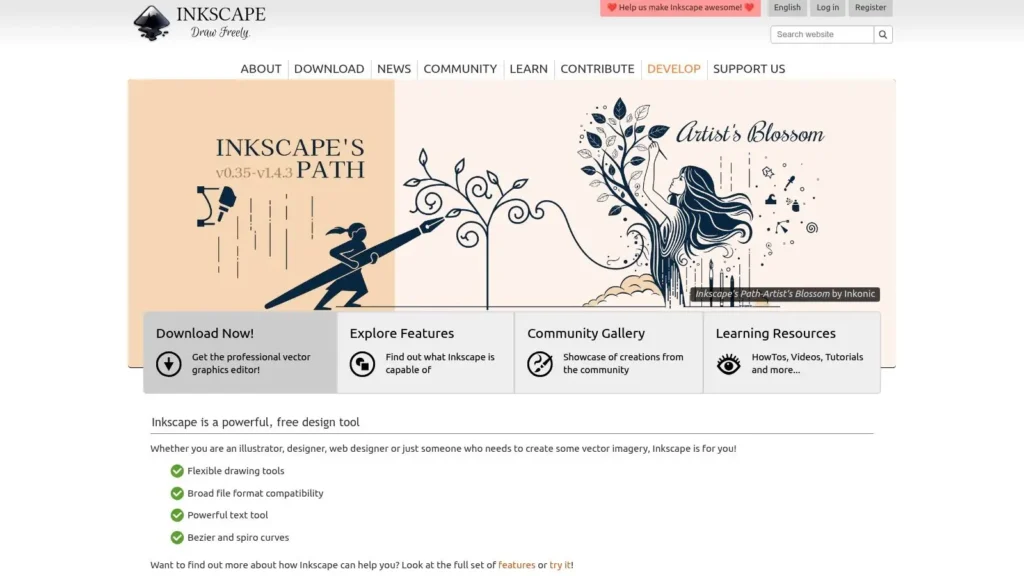
While its user interface may feel less polished than its commercial counterparts, its capabilities are robust and comprehensive. It’s a fantastic way to learn the fundamentals of vector design, such as working with paths, nodes, and layers, without any financial investment. Its cross-platform availability on Windows, macOS, and Linux makes it accessible to virtually everyone, regardless of their operating system.
Platform Breakdown
| Aspect | Details |
|---|---|
| Cost | Completely free and open source. |
| Beginner-Friendliness | Good. There is a learning curve, but excellent community tutorials make it manageable for newcomers. |
| Ideal Use Cases | Logo design, vector illustrations, icon creation, diagrams, and preparing files for laser cutters or vinyl. |
| Key Features | Powerful vector editing tools, broad file format support (SVG, AI, PDF), object creation, and path tools. |
Practical Tips & Resources
For beginners, the best way to start with Inkscape is by following community-made tutorials. Focus on mastering the Pen (Bézier) tool, as it’s the foundation of most vector illustration. Don’t be afraid to download the source files of other artists’ work to deconstruct how they built their designs, which can dramatically speed up your learning process.
- Pros:
- Completely free and open source (GPL)
- Powerful features for professional vector work
- Good learning resources and extensions ecosystem
- Cons:
- User interface and performance can feel less polished than commercial tools
- Fewer built-in templates and assets compared to paid platforms
Get started at: https://inkscape.org
7. GIMP
GIMP (GNU Image Manipulation Program) is a legendary free and open-source powerhouse in the world of graphic design software for beginners. It stands as a robust, no-cost alternative to Adobe Photoshop, offering sophisticated tools for photo retouching, image composition, and graphic creation. Its strength lies in providing professional-level raster editing capabilities, like layered editing and masks, without requiring any financial investment.
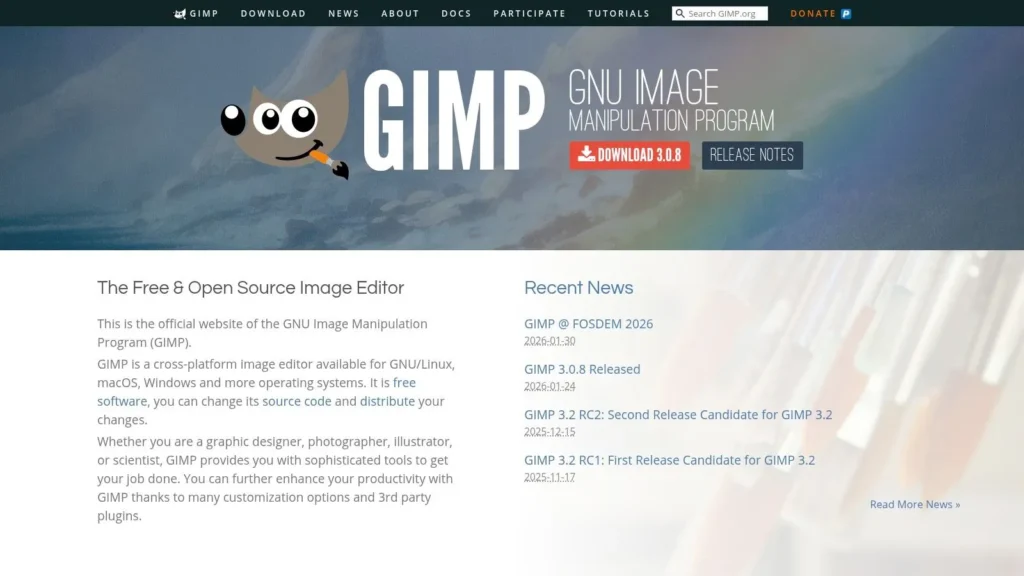
Unlike modern web-based tools, GIMP is a downloadable desktop application that has been developed and refined by a community for decades. This gives it depth and power, though its interface can feel less polished than subscription-based competitors. It is the perfect choice for aspiring designers, photographers, or hobbyists who want to learn the fundamentals of pixel-based editing without the barrier of a price tag.
Platform Breakdown
| Aspect | Details |
|---|---|
| Cost | Completely free and open-source. No hidden fees, subscriptions, or account requirements. |
| Beginner-Friendliness | Moderate. The interface is less intuitive than template-driven tools, requiring more effort to learn. |
| Ideal Use Cases | Photo retouching, detailed image manipulation, creating web graphics, digital painting, and asset creation. |
| Key Features | Advanced layered editing, masks and filters, customizable brushes, cross-platform support, extensive plug-in ecosystem. |
Practical Tips & Resources
To get comfortable with GIMP, start by focusing on basic photo editing tasks like cropping, color correction, and using the healing tool to remove blemishes. The community-driven nature of the software means there is a vast library of free tutorials on YouTube and user forums. Mastering layers and masks is the key to unlocking its full potential for more complex design projects.
- Pros:
- Completely free with no account required
- Powerful enough for many professional design tasks
- Extensive customization through plug-ins
- Cons:
- Less intuitive UI and steeper learning curve
- Some advanced workflows may require add-ons
Get started at: https://www.gimp.org
8. Sketch
For Mac users entering the world of design, Sketch is a highly regarded platform that offers a powerful yet focused alternative to more complex software. It’s a professional-grade vector editor celebrated for its clean, intuitive user interface, making it a favorite for UI/UX design, icon creation, and marketing visuals. Its strength lies in providing a native macOS experience that feels fast, responsive, and uncluttered, allowing beginners to focus on design fundamentals rather than navigating a confusing workspace.
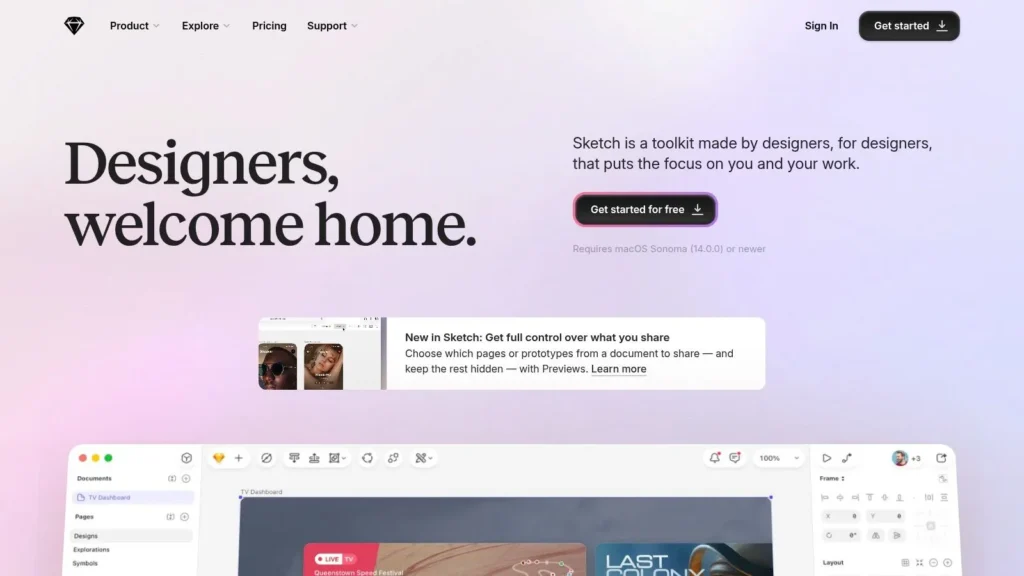
While traditionally known as a desktop app, Sketch has expanded its ecosystem to include a web-based workspace for viewing, commenting, and developer handoff. This makes collaboration much easier, even with team members who don’t use a Mac. Its vector editing tools are straightforward, making it one of the best choices of graphic design software for beginners aiming to create scalable logos, illustrations, or website mockups without an overwhelming number of features.
Platform Breakdown
| Aspect | Details |
|---|---|
| Cost | Subscription starts at $10 per editor/month (billed annually). A 30-day free trial is available. |
| Beginner-Friendliness | Very Good. The interface is clean and less intimidating than other professional tools, especially for vector work. |
| Ideal Use Cases | UI/UX design for web and mobile apps, logo and icon design, vector illustrations, and interactive prototyping. |
| Key Features | Powerful vector editor, real-time collaboration tools, interactive prototyping, developer handoff features. |
Practical Tips & Resources
New users should take full advantage of the extensive library of plugins and integrations. These “Symbols” and “Libraries” can dramatically speed up your workflow by allowing you to reuse elements like buttons and icons across multiple designs. Start by creating a simple set of icons to get comfortable with the Pen tool and shape manipulation, which are core skills in vector design.
- Pros:
- Streamlined, beginner-friendly vector editor on Mac
- Polished interface with strong community resources
- Excellent for UI/UX and icon design
- Cons:
- Mac-only native editor (no Windows support)
- Collaboration and web features require a subscription
Get started at: https://www.sketch.com
9. Procreate
Procreate is an exceptional choice for beginners who prefer a hands-on, artistic approach to graphic design, exclusively on the iPad. It’s less of a traditional layout tool and more of a powerful digital art studio that excels at illustration, lettering, and painting. Its strength lies in its incredibly intuitive interface that feels natural with an Apple Pencil, making it the go-to graphic design software for beginners venturing into digital drawing.
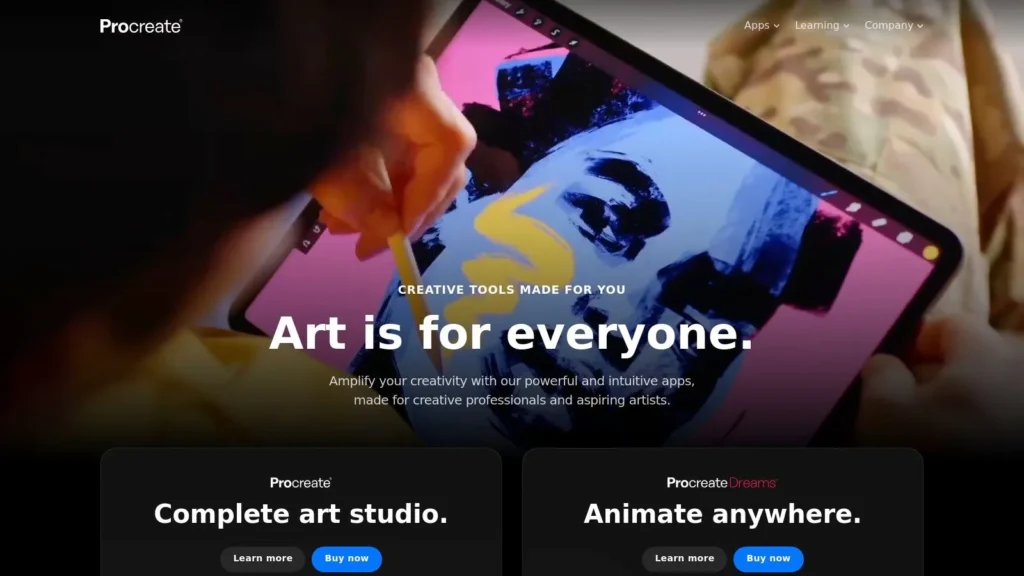
Unlike subscription-based models, Procreate is available as a one-time purchase, offering tremendous value. It’s powerful enough for professional illustrators but simple enough for a complete novice to pick up and start creating. The app supports high-resolution canvases, a vast library of customizable brushes, and even features like Animation Assist and 3D painting, providing a robust creative toolkit for a very low entry cost.
Platform Breakdown
| Aspect | Details |
|---|---|
| Cost | One-time purchase of $12.99 on the App Store. No subscriptions. |
| Beginner-Friendliness | Excellent. The touch-based interface combined with an Apple Pencil provides a natural and fast-to-learn workflow. |
| Ideal Use Cases | Digital illustration, hand lettering, concept art, social media story graphics, and simple animations. |
| Key Features | Massive brush library, high-resolution canvases, intuitive gesture controls, Animation Assist, 3D model painting. |
Practical Tips & Resources
The key to mastering Procreate is experimenting with its brushes and layers. Start by creating simple social media graphics or lettering quotes to familiarize yourself with the tools. For those new to digital art, you can explore various painting techniques for beginners to build foundational skills that translate perfectly to the app.
- Pros:
- Affordable one-time purchase with no recurring fees
- Best-in-class drawing and painting experience on iPad
- Powerful and fast performance, even with large files
- Cons:
- Only available on iPad; no desktop or Android version
- Not a full-fledged layout or vector design suite
Get started at: https://procreate.art
10. Figma
Figma is a powerhouse in the design world, primarily known for UI/UX, but its versatility makes it an excellent piece of graphic design software for beginners. As a browser-first platform, it eliminates installation hassles and allows you to start creating immediately. Its standout feature is unparalleled real-time collaboration, letting you work on designs with others simultaneously, much like a Google Doc for graphics.
While its interface may seem more complex than template-based tools at first glance, Figma’s generous free plan and massive community library make it incredibly accessible. Beginners can deconstruct thousands of free templates, from social media posts to presentations, to learn how professional designs are built. This hands-on approach provides a unique pathway to mastering more advanced design concepts without a financial commitment.
Platform Breakdown
| Aspect | Details |
|---|---|
| Cost | Robust free “Starter” plan for individuals. Paid plans start at $12 per editor/month, adding advanced features. |
| Beginner-Friendliness | Good. While there’s a learning curve, the vast community resources and intuitive vector tools make it manageable. |
| Ideal Use Cases | Social media graphics, presentations, simple vector illustrations, UI mockups, and collaborative team projects. |
| Key Features | Real-time multiplayer collaboration, vector networks, auto layout, extensive community plugins and file library, web-based. |
Practical Tips & Resources
Dive into the Figma Community tab to find free, editable files for almost anything you can imagine, from icon sets to complete slide decks. This is the fastest way to learn. Modifying a professional template is a fantastic exercise to understand layers, grouping, and styling.
- Pros:
- Generous free plan with no installation required
- Unmatched real-time collaboration features
- Massive library of community-made templates and plugins
- Cons:
- Requires a constant internet connection for full functionality
- Can be overkill for users who only need simple, template-based designs
Get started at: https://www.figma.com
11. Krita
Krita is a powerful, free, and open-source digital painting program that has carved out a niche as exceptional graphic design software for beginners focused on illustration, concept art, and comics. While not a traditional layout tool, its strengths in drawing and painting make it an invaluable asset for creating custom illustrations, textures, and hand-drawn elements for larger design projects. It offers professional-grade features without any cost, making it a fantastic starting point for artists.
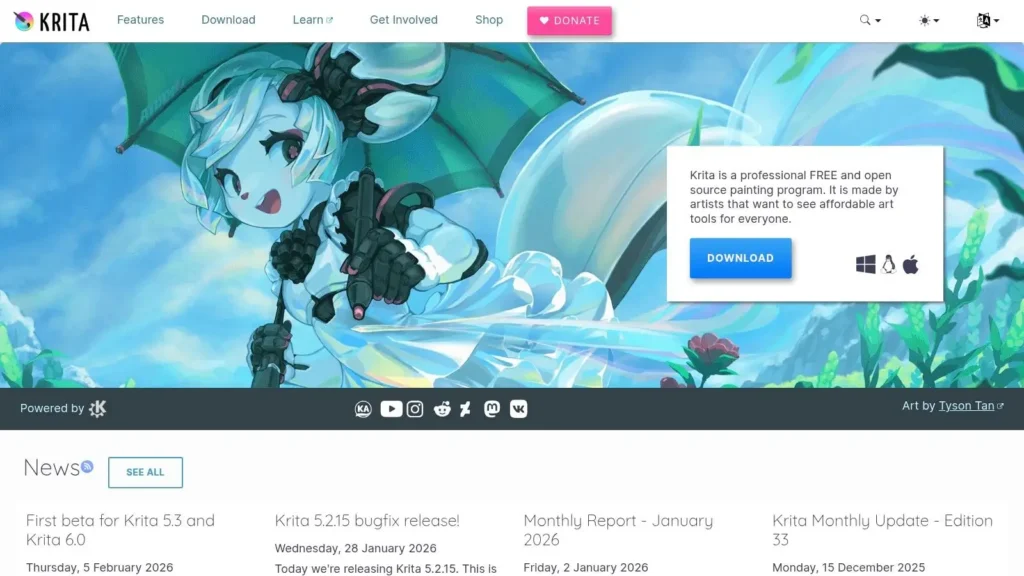
Unlike many free tools, Krita is not a watered-down experience; it’s a full-featured application driven by a passionate community of artists and developers. Its standout feature is its brush engine, which provides extensive customization and a smooth, natural feel for digital artists using a drawing tablet. For beginners wanting to incorporate unique, artistic illustrations into their graphic design work, Krita provides a robust and completely free platform to do so.
Platform Breakdown
| Aspect | Details |
|---|---|
| Cost | Completely free and open-source. Optional paid versions on digital stores support development and offer auto-updates. |
| Beginner-Friendliness | Good. The interface can seem complex initially, but it’s logical for those familiar with digital art concepts. |
| Ideal Use Cases | Digital painting, concept art, comic creation, hand-drawn logos, and custom illustrations for other design projects. |
| Key Features | Advanced brush engines, brush stabilizers, layer management, vector and text tools, animation timeline, and wrap-around mode. |
Practical Tips & Resources
New users should focus on mastering the brush tools and layer system first. Krita’s brush stabilizer is a huge help for beginners struggling to draw smooth lines with a tablet. You can use it to create unique social media icons or illustrated characters for a branding project. The official Krita documentation and community forums are excellent places to find tutorials and ask questions.
- Pros:
- Completely free with no subscriptions or ads
- Excellent for drawing and painting workflows
- Powerful and highly customizable brush tools
- Cons:
- Less focused on page layout or vector-heavy graphic design
- The depth of features can feel overwhelming for absolute beginners
Get started at: https://krita.org
12. Pixlr
Pixlr stands out as a powerful, browser-based suite of photo editing and design tools, making it an excellent piece of graphic design software for beginners who need quick results without software installation. It bridges the gap between simple template apps and more complex software by offering two distinct editors: Pixlr X for quick, playful designs and Pixlr E for more detailed photo editing. This dual approach allows users to start simple and graduate to more advanced controls as they gain confidence.
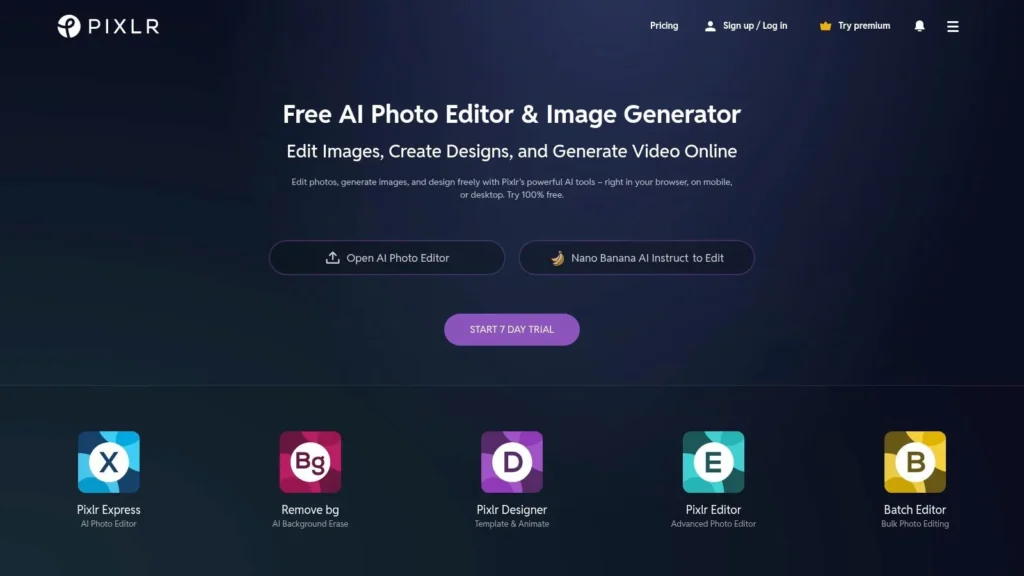
Its core advantage is accessibility. Anyone with an internet connection can start editing photos, creating social media graphics, or removing backgrounds in seconds. While the free version is robust, the premium plans are very affordable and unlock a wider range of AI tools, templates, and assets, positioning Pixlr as a strong, low-cost alternative to more established platforms for individuals and small teams.
Platform Breakdown
| Aspect | Details |
|---|---|
| Cost | Free plan with ads. Paid tiers start at a very low price point (often under $5/month) with free trials available. |
| Beginner-Friendliness | Excellent. The interface is intuitive, and the choice between the simple (X) and advanced (E) editors is helpful. |
| Ideal Use Cases | Quick photo touch-ups, background removal, collage creation, social media posts, and simple template-based designs. |
| Key Features | AI-powered background/object removal, generative fill, large template library, web/desktop/mobile access. |
Practical Tips & Resources
Leverage Pixlr’s AI background removal for creating clean product photos or profile pictures without needing complex masking skills. For social media managers, the template library in Pixlr X offers a fast way to generate content on the fly. Don’t be afraid to switch between Pixlr X for a quick start and Pixlr E if you need to fine-tune layers or adjustments for a more polished look.
- Pros:
- Fast, no-install editing directly in your browser
- Generous free tier and very low-cost paid plans
- Powerful one-click AI tools simplify complex edits
- Cons:
- Not ideal for complex vector or print layout tasks
- Asset and template library is smaller than major competitors
Get started at: https://pixlr.com
Top 12 Beginner Graphic Design Software Comparison
| Tool | Target audience | Core features | Ease of use | Price / access | Unique selling point |
|---|---|---|---|---|---|
| Adobe Express | Social editors, non‑designers | Templates, one‑click resize, background removal, brand kits | Very beginner‑friendly | Freemium; paid plans with AI credits | Quick social graphics + Adobe ecosystem onramp |
| Canva | Bloggers, marketing teams, creators | Massive templates/elements, collaboration, AI assists | Very easy to learn | Freemium; Teams/Enterprise paid tiers | Huge template library + strong team features |
| Affinity by Canva | Beginners wanting pro tools, offline users | Unified pixel/vector/layout, native format support, offline desktop | Moderate — pro features | Free forever (per source); optional Canva AI via premium | Pro‑grade desktop tools at zero cost |
| Adobe Photoshop Elements | Hobbyist photographers, casual editors | Guided Edits, media organizer, AI assists | Beginner‑oriented with tutorials | One‑time multi‑year license (non‑renewing noted) | Guided workflows for common photo tasks |
| CorelDRAW Graphics Suite | Print/branding designers, layout pros | Vector illustration, page layout, font & color tools | Moderate — learning curve for print work | Subscription or one‑time purchase; free trial | Robust print/layout toolkit with flexible licensing |
| Inkscape | Budget users, vector learners | SVG‑native editor, import/export, cross‑platform | Moderate — less polished UI | Free (open source, GPL) | Zero‑cost vector editor with active community |
| GIMP | Photo retouchers on a budget, power users | Layered raster editing, masks, filters, plugins | Moderate to advanced UI | Free (open source) | Photoshop‑style features without cost |
| Sketch | macOS UI designers, product teams | Vector editing, prototyping, web workspace, iOS preview | Easy and streamlined on Mac | Trial; subscription or yearly license | Polished Mac‑native UX for UI/visual design |
| Procreate | iPad illustrators, lettering artists | Apple Pencil workflow, vast brushes, animation assist | Very easy for drawing/sketching | One‑time purchase (iPad only) | Best‑in‑class drawing experience on iPad |
| Figma | UI teams, collaborators, learners | Web‑based editor, real‑time multiplayer, templates | Easy to start; cloud focused | Freemium; paid seats for advanced features | Unmatched real‑time collaboration + web‑first |
| Krita | Digital painters, concept artists | Powerful brush engines, animation timeline, layers | Moderate — feature rich | Free (open source); optional paid store builds | Professional painting tools, community driven |
| Pixlr | Quick editors, social content creators | Browser photo editor, AI background/object removal, templates | Very easy; no install required | Freemium; web/desktop/mobile | Fast, no‑install edits with beginner AI tools |
Choosing Your Tool and Taking the First Step
You’ve just navigated a comprehensive landscape of beginner-friendly graphic design software, from the swift, browser-based convenience of Canva and Adobe Express to the powerful, open-source capabilities of GIMP and Inkscape. The sheer number of options can feel overwhelming, but the goal isn’t to find a single, perfect tool for life. The goal is to find the right tool to start your creative journey now.
The most common hurdle for aspiring designers isn’t a lack of talent; it’s “analysis paralysis,” the state of overthinking that prevents you from ever starting. Remember that the best way to learn graphic design is by actively designing. Your first choice of software is simply a vehicle for learning fundamental principles like composition, color theory, and typography.
How to Make Your Final Decision
To cut through the noise, revisit your primary motivation. What do you want to create first? Your immediate goals are the best compass for choosing the right starting point.
- For Social Media & Marketing Graphics: If your main goal is to quickly produce eye-catching posts, ads, or simple marketing materials, tools like Canva and Adobe Express are engineered for speed and simplicity. Their template-driven workflows remove technical barriers, letting you focus on the message and brand.
- For Digital Illustration & Vector Art: If you’re drawn to creating logos, icons, or complex illustrations from scratch, a vector-based program is essential. Inkscape offers a powerful, free entry point, while Affinity Designer provides a professional-grade, one-time purchase alternative to subscription models.
- For Photo Editing & Raster Graphics: For those focused on manipulating photographs, creating digital paintings, or working with pixel-based art, your best options are tools like Adobe Photoshop Elements, GIMP, or the more artist-centric Krita. If you’re an iPad user, Procreate is an unmatched choice for digital drawing and painting.
- For UI/UX & Web Design: If your interest lies in designing websites and app interfaces, starting with a collaborative, industry-standard tool is wise. Figma is the undisputed leader here, offering a generous free tier that is more than enough for any beginner to master the fundamentals of interface design.
Your Action Plan: From Reading to Creating
Don’t let this newfound knowledge sit idle. The most critical step is the one you take right after closing this article. Most of the tools we’ve covered offer either a free version or a no-risk trial period. Your mission is simple: pick one that aligns with your goals and commit to a small, tangible project.
Forget about creating a masterpiece on day one. Instead, focus on a manageable task. Recreate a simple logo you admire, design a birthday card for a friend, or follow a step-by-step tutorial to create a social media graphic. This hands-on experience is where true learning happens. You’ll discover the tool’s logic, internalize keyboard shortcuts, and build the muscle memory that turns clunky actions into a fluid creative process. Your first piece of graphic design software for beginners doesn’t need to be your forever tool; it just needs to be your first tool.
Ready to see how designers apply these tools to create compelling content? Explore maxijournal.com, where you’ll find inspiration and articles from creators who use this very software to bring their ideas to life. Visit maxijournal.com to continue your journey from beginner to creator.
Discover more from Maxi Journal
Subscribe to get the latest posts sent to your email.
Pingback: Installing CC in The Sims 4: A Friendly Player Guide