So, you’re ready to dive into the world of Custom Content and really make The Sims 4 your own. Smart move. Installing CC is the single best way to unlock a universe of creativity, adding everything from high-fashion outfits and wild hairstyles to unique furniture that makes your builds pop. It’s a total game-changer.
This guide will walk you through the entire process, step-by-step, so you can get everything installed safely and start playing with your new stuff right away.

The basic idea is pretty simple: you download files from creators, unzip them, and then drop them into a special folder the game creates for you. Once they’re in the right spot, you just have to flip a switch in the game’s settings, and you’re good to go.
The Two Main Types of CC
Before you start downloading, it’s super important to know what you’re working with. You’ll run into two main kinds of CC, and they each have their own rules.
- .package Files (Standard CC): This is what you’ll see 95% of the time. These files are the actual items—the clothes, hair, makeup, furniture, and so on. They expand your catalog in Create-a-Sim or Build/Buy mode and are generally very easy to manage.
- .ts4script Files (Script Mods): These are a different beast entirely. Script mods change how the game behaves. Think of major mods like MC Command Center or UI Cheats Extension; they add new gameplay, change the UI, or introduce new interactions. They’re incredibly powerful but require a bit more care during installation.
Getting this difference is key to keeping your game running smoothly. You’ll organize them differently and troubleshoot them differently. It’s a bit like learning the basics of a new tool; many creators in the Sims community are self-taught, figuring things out as they go, much like someone discovering graphic design software for beginners through pure experimentation.
Key Takeaway: Just remember this: .package files add things, while .ts4script files change gameplay. Always be extra careful with script mods to avoid breaking your game.
To make it even clearer, let’s break down the common file types you’ll encounter.
Common Sims 4 CC File Types
Here’s a quick reference for the file types you’ll download and where they need to go in your game folders.
| File Type | Description | Installation Folder |
|---|---|---|
| .package | The most common file type. Adds items like hair, clothes, and furniture. | Mods |
| .ts4script | Alters gameplay or adds new functions. Requires careful handling. | Mods (often no more than one subfolder deep) |
| .bpi / .blueprint / .trayitem | These are Tray files for lots, rooms, and households. | Tray |
| .zip / .rar / .7z | Compressed archives containing the actual CC files. You must extract these first. | Not placed in game folders. |
Getting comfortable with these file extensions will make the whole process much smoother as you build your collection.
Finding and Downloading Safe CC
Before you can start giving your Sims a makeover, you’ve got to find the goods. Diving into the world of Sims 4 custom content can feel like jumping into the deep end of a pool—there are just so many options. The community is bursting with creativity, but your number one job is to keep your game safe. The best way to do that? Stick to the tried-and-true sources to protect your computer from nasty malware or broken files.
Your first stop should always be the major community hubs. These are the big-name sites that have been around for ages, building up a solid reputation for hosting safe, high-quality downloads from a staggering number of creators. Think of them as your gateway to discovering artists whose style you’ll absolutely love.
Trusted CC Hubs
- The Sims Resource (TSR): As one of the oldest and largest libraries for Sims CC, TSR has literally millions of items. It’s an ad-supported site, so you’ll have a short wait timer for free downloads, but the content is widely considered safe and is well-organized.
- ModTheSims (MTS): While it’s famous for game-altering mods, MTS also hosts a massive collection of custom content. They have a pretty strict upload process, which is great for you—it means the files are usually well-tested and less likely to break your game.
- Creator-Run Platforms: So many of the best creators share their work directly on platforms like Patreon or Tumblr. Following your favorite artists is the perfect way to get their newest stuff, and you can often get early access by supporting them.
Maxis Match vs. Alpha CC
As you browse, you’ll see two terms pop up constantly: “Maxis Match” and “Alpha.” These are the two main aesthetic styles for CC, and knowing what they mean will help you build a game that looks exactly how you want it to.
Key Difference: Maxis Match CC is made to look like it belongs in the original game. It has that same cartoony, slightly clay-like feel, especially for things like hair and clothes. Alpha CC, on the other hand, goes for hyper-realism with super-detailed, photographic textures and individually drawn hair strands.
Neither one is better—it’s all about your personal taste. Some Simmers are purists and stick to one style for a cohesive look, while others love to mix and match. You can find tons of inspiration for creating unique game aesthetics from the broader gaming and entertainment community.
Spotting Red Flags on CC Sites
Once you start exploring beyond the big hubs, you need to be a little more careful. A creator’s personal blog or website can be a treasure trove, but you have to know how to spot trouble. The biggest red flag is the use of ad-shortener links (like Adfly) that force you to click through a maze of pop-ups just to get to a download link.
These sites are designed to be confusing and can sometimes hide malicious software. If a download process ever feels sketchy or makes you navigate a gauntlet of ads, just close the tab. It’s not worth the risk. A reputable creator will always give you a direct, clean download link from a service like SimFileShare, Patreon, or CurseForge.
Getting Your Custom Content Installed on PC and Mac
Alright, let’s get to the good stuff—actually putting all that awesome CC you’ve downloaded into your game. Once you know the ropes, the process is pretty simple, and thankfully, it’s almost the same whether you’re playing on a PC or a Mac.
The most important thing to understand is your game’s file structure, which sounds way more technical than it actually is. Your entire CC collection has a special home inside a folder The Sims 4 creates just for this purpose. Your first job is to find this folder, which is basically the command center for everything you’re about to do.
This little diagram breaks down the whole process, from finding your CC to getting it into your game safely.
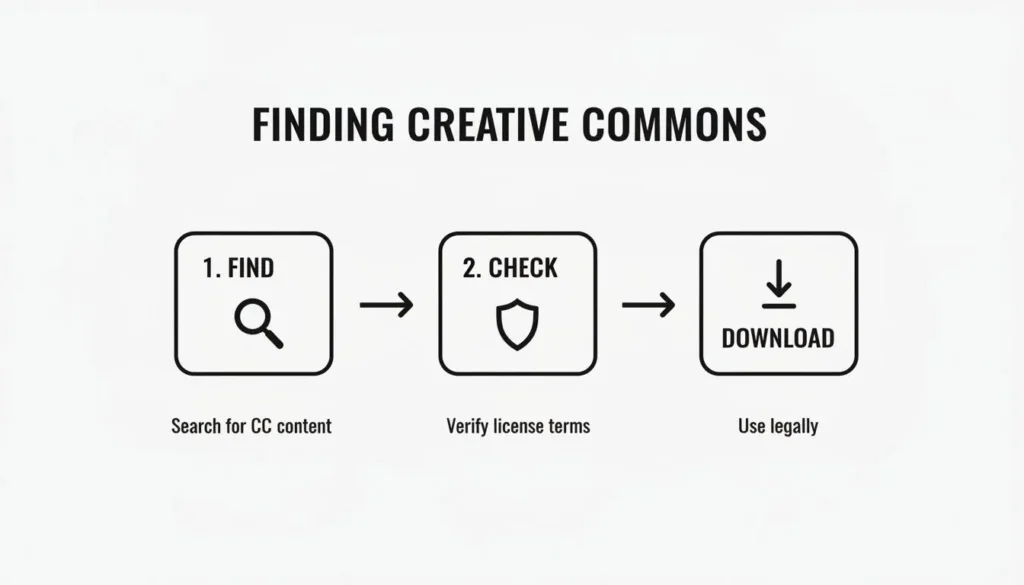
As you can see, a successful installation starts way before you even open your game folders. It begins with being a smart downloader from the very start.
Finding Your Sims 4 Mods Folder
No matter if you’re a Windows or macOS user, the path to your Mods folder is exactly the same. Here’s a key detail: it’s not located where you installed the game itself. Instead, it lives in your personal Documents folder. EA did this on purpose to protect your saves and custom content from getting wiped out during game updates.
Head to this exact location on your computer:
- For PC Users:
DocumentsElectronic ArtsThe Sims 4Mods - For Mac Users:
Documents/Electronic Arts/The Sims 4/Mods
The very first time you peek inside the Mods folder, you’ll find a single file called Resource.cfg. This little file is critical. It’s the instruction manual that tells The Sims 4, “Hey, look in here for cool new stuff!” You should never, ever delete this file. If you do, your CC just won’t show up. It’s as simple as that.
Sorting Out the Different CC File Types
Now that you’ve found where your CC lives, we need to talk about what you’ll be putting in there. Most of your downloads will come in one of two forms: either zipped up in a compressed folder or as individual files ready to go.
A ton of CC comes packaged in compressed files, usually .ZIP or .RAR folders. You’ll need to “unzip” or “extract” these before you can use them. Windows and macOS have built-in tools for .ZIP files (just right-click and choose “Extract All” or “Open”). For .RAR files, you’ll need a free program like 7-Zip for PC or The Unarchiver for Mac.
Pro Tip: I always create a temporary folder on my desktop called something like “New CC To Sort.” I extract everything there first. This gives me a chance to rename files so I remember what they are (e.g., “[Pralinesims] Eyebrows N135”) and delete anything I don’t want before it ever touches my official Mods folder.
Knowing Where Each File Goes
This part is crucial. Putting a file in the wrong folder will, at best, mean it doesn’t work. At worst, it could cause weird glitches in your game. Here’s the simple breakdown:
.package and .ts4script Files: These are the bread and butter of your CC. Clothes, hair, furniture, and script mods all use these formats. Both of these file types go directly into your Mods folder (
DocumentsElectronic ArtsThe Sims 4Mods). You can even create subfolders inside to keep things tidy, which we’ll get into later.Tray Files (.bpi, .blueprint, .trayitem): These are totally different. They’re for downloaded Sims, households, or entire lots (like houses or community venues). These files do not go in the Mods folder. Instead, they have their own special home in the
Trayfolder, found right next to your Mods folder:DocumentsElectronic ArtsThe Sims 4Tray.
Understanding how different software manages files can be super helpful, especially when you get deep into modding. If you’re curious about the broader world of software and file management, you might find our other articles on technology interesting.
Activating Custom Content In Your Game
So, you’ve gone through the whole process: you found some amazing custom content, downloaded it, and carefully placed all the files into your Mods folder. That’s a great start, but you’re not quite done. Before you can actually see that cool new hairstyle or industrial-style sofa in your game, you have to give The Sims 4 the green light to use them.
Think of it as an authorization step. You’re essentially telling the game, “Hey, I know these are third-party files, and I give you permission to load them.” It’s a simple but absolutely critical toggle in the game’s menu. If you skip this, your game will completely ignore the Mods folder, leaving you wondering why none of your new CC is showing up.
Enabling CC in Game Options
First thing’s first: launch The Sims 4 and hang out at the main menu for a moment. Don’t load up a save file just yet. In the top-right corner of the screen, you’ll see those three little dots (…). Give them a click to open up the Options menu.
From there, it’s just a couple of clicks to get where you need to go.
- From the dropdown list, choose Game Options.
- A new panel will pop up. On the left side, select the Other tab.
This “Other” section is your command center for all things custom content. You’ll spot two checkboxes here, and both are essential for getting your CC and mods up and running.
Heads Up: You absolutely must check both of these boxes. Ticking the first one but not the second will let basic CC like clothes and furniture work, but it will block any script mods that change gameplay.
Make sure both of these options have a checkmark:
- Enable Custom Content and Mods: This is the master switch. It activates all the .package files you’ve installed—your clothes, hair, objects, and build items.
- Script Mods Allowed: This one is specifically for .ts4script files. These are the mods that add new gameplay features or tweak existing ones. Without this enabled, essential mods like MCCC or UI Cheats Extension won’t work at all.
Once both boxes are checked, hit the green Apply Changes button in the bottom right. The game will immediately tell you that it needs to be restarted. This isn’t just a suggestion! You have to fully exit and relaunch the game for your settings to take effect.
The Post-Patch Reset
Here’s a classic scenario that sends new CC users into a panic: a new game patch drops from EA. You update your game, load it up, and all your custom content is gone. Don’t freak out!
After every single official game update, The Sims 4 automatically disables all custom content. This is a built-in safety measure. It’s designed to stop outdated or broken mods from crashing your game right after a patch, which is a surprisingly thoughtful feature.
Your files are still perfectly safe in your Mods folder. All you need to do is repeat the steps above. Just head back into Game Options > Other, re-check the two boxes, apply the changes, and restart your game. It’s a simple little ritual that becomes second nature for every seasoned CC user.
Taming the Beast: How to Organize Your Mods Folder for a Happy Game
When you first start downloading custom content, it’s easy. A file here, a file there. But fast forward a few months, and your once-pristine Mods folder has likely exploded into a chaotic jumble of thousands of files. This isn’t just an eyesore—a messy folder can seriously slow down your game’s loading times, turn troubleshooting into a full-blown detective case, and even cause crashes.
Getting a handle on organization from the get-go (or starting now!) is the secret to a stable, long-lasting Sims 4 experience.

The core idea is simple: use subfolders to categorize everything. This one small change transforms how you install CC, moving you from a “dump and pray” approach to a clean, manageable system. Trust me, when a game patch inevitably breaks that one perfect hairstyle, you’ll be glad you know exactly where to find it instead of scrolling through an endless sea of cryptic filenames.
Finding a Structure That Clicks for You
There’s no single “right” way to organize your folder. The best system is the one that makes intuitive sense to you. Most players land on one of two popular methods, or even a hybrid of both.
- Organize by Item Type: This is a classic for a reason. Start with broad categories like
CAS,BuildBuy, andMods. Then, get more specific. InsideCAS, you could have subfolders forHair,Clothes,Makeup, andAccessories. It makes finding and removing specific types of CC a breeze. - Organize by Creator Name: Are you a huge fan of specific creators like ClumsyAlien or Peacemaker? Give them their own dedicated folders. For instance, you could set up a path like
Mods > Creators > [ClumsyAlien] > Hair. This is a lifesaver for tracking down updates, as you can just go to that one folder to see everything you have from them.
Whichever path you choose, a little structure is your best defense against a glitchy, unhappy game.
Heads Up! The One Subfolder Rule for Script Mods
While standard CC (.package files) can be buried several folders deep without any issues, many Script Mods (.ts4script files) are a bit fussier. They will only function correctly if they’re placed no more than one folder deep inside your main Mods folder. To be safe, I always recommend putting all script files either directly into the Mods folder or inside a single, dedicated subfolder, likeMods > [Script Mods].
Keeping Your Folder Healthy: Essential Maintenance
A tidy folder isn’t a one-and-done job; it needs a little ongoing TLC. Your CC collection will grow, and so will its demand on your computer. When The Sims 4 launched way back in 2014, EA suggested having about 1 GB for custom content. Today, it’s not uncommon for serious players to have collections topping 50 to 60 gigabytes—way bigger than the base game itself. You can find more details on the game’s storage needs over at SimsVIP.
With that in mind, regular maintenance is non-negotiable.
Make it a habit to check for updates to your major script mods after every official game patch. Creators are usually super quick to release new versions to keep things compatible.
You might also want to look into a community-trusted tool like the Sims 4 Mod Manager. Programs like this can give you a visual overview of your CC, letting you disable or delete items without having to manually hunt through your folders. It’s an incredible time-saver. A bit of routine care is the secret weapon to making sure your custom content enhances your game instead of breaking it.
Answering Your Biggest Sims 4 CC Questions
Even when you follow the steps perfectly, you can still hit a few bumps in the road. It happens to literally everyone, from first-timers to seasoned Simmers. Let’s walk through some of the most common hangups and get you back to playing.
Why Is My Custom Content Not Showing Up In Game?
This is, hands down, the number one problem people run into. If you’ve downloaded a bunch of cool stuff but don’t see it in Create-a-Sim or Build Mode, run through this quick troubleshooting checklist.
First off, did you actually turn mods on? Head into your game and navigate to Game Options > Other. You need to make sure both the “Enable Custom Content and Mods” and “Script Mods Allowed” boxes are ticked. Once you apply the changes, you have to completely restart the game for it to work. No shortcuts!
Next, let’s talk file location. Your mods folder is very particular. Every single .package and .ts4script file has to live inside this exact folder path: DocumentsElectronic ArtsThe Sims 4Mods. A classic mistake is accidentally leaving your CC in your computer’s Downloads folder. The game can’t see it there.
And finally, check for zipped files. The game has no idea what to do with a .zip or .rar file. You have to open them up and pull the actual CC files out. If a creator’s download is a .zip file, you can bet the goodies are tucked away inside.
Is It Safe To Download and Install Sims 4 CC?
For the most part, yes! Installing CC is incredibly safe, as long as you’re smart about where you get it from. The Sims modding community is massive and built on a foundation of trust. Big, well-known sites like The Sims Resource or ModTheSims, plus popular creators on platforms like Patreon, are your safest bets.
Just be cautious of any site that makes you jump through hoops with ad-shortener links (like Adfly) that spawn a million pop-ups. A reputable creator will almost always give you a direct, easy-to-use download link.
Here’s the thing: a broken piece of CC won’t give your computer a virus. At its absolute worst, it might cause some weird visual glitches or make your game crash. The fix is almost always as simple as just removing the problem file from your Mods folder.
What Do I Do After a New Sims 4 Game Update?
Ah, the dreaded patch day. Those official game updates from EA are notorious for breaking mods, especially script mods that change how the game behaves. As a safety measure, the game automatically disables all your mods every single time it updates.
So, your first job is always to go back into the game options and re-enable them. But hold on—before you do that, you need to check if your big script mods need an update, too. This is super important.
- Check Creator Sites: Hop over to the websites of the creators for your essential script mods. Think Deaderpool for MCCC or Weerbesu for UI Cheats Extension. See if they’ve released a new version that’s compatible with the latest patch.
- Replace Old Files: When you download the updated mod, always delete the old version from your Mods folder first. Don’t just drag and drop the new one on top of it. That can leave old, conflicting files behind that will cause chaos in your game.
- Test Your Game: Once you’ve updated everything, load up a test save—not your precious legacy family!—just to make sure everything is running smoothly.
Making this little routine a habit after every patch will save you a world of frustration. The modding community is amazingly fast, and you’ll often see updates for major mods within 24-48 hours. A little patience goes a long way to keeping your game stable and happy.
At maxijournal.com, we dive into everything from gaming guides to the latest in tech and entertainment. Explore our articles to discover more. Find your next read on maxijournal.com.
Discover more from Maxi Journal
Subscribe to get the latest posts sent to your email.