Your child wants to join friends in a game, and you’re staring at a menu full of permissions. There’s a spending setting on the console, a chat setting inside the game, and another privacy screen on your phone. You want to say yes to the fun without accidentally saying yes to open messages, unexpected purchases, or gaming through bedtime.
Parental controls for gaming work best as a system of settings, family rules, and checks. You don’t need to understand every technical term before you begin. You need to know which account your child uses, what each restriction covers, and how to confirm that it works.
Settings Families Can Manage at a Glance
Gaming parental controls are settings built into consoles, PCs, phones, and individual game accounts that decide what a child can play, buy, see, and share. They’re like a smoke alarm: useful only when installed, switched on, and tested. Owning a device with controls doesn’t mean your child’s account is protected.
These tools have been ordinary family technology for a long time. In its U.S. industry findings, the Entertainment Software Association’s 2009 report found that 77% of parents considered parental controls available on new video-game consoles useful.
Core parental control settings and what they limit
| Setting | What It Limits | Where It Usually Lives |
|---|---|---|
| Play time | Daily or weekly hours and device downtime | Console or device family settings |
| Purchases | In-game and store spending, purchase approval | Account or payment settings |
| Age ratings | Mature-rated games and content | Console or store content filter |
| Chat and friends | Voice chat, text chat and friend requests | Game or platform privacy settings |
| Discoverability | Whether strangers can find or message the child | Game profile or privacy settings |
| Privacy and data | Camera, microphone, location and personalized ads | Account privacy and consent pages |
The confusing part is that these categories don’t necessarily live together. On a console, the family menu may control game access, while the game publisher’s account page controls direct messages. A phone’s microphone permission is a different setting again.
Nor should you assume that a restriction follows your child everywhere. A console setting may not cover the same game opened on a tablet, and a device timer may not combine activity across different devices. Write down the devices and accounts your child uses before changing settings.
Choose the game and its permissions separately
A game’s educational value doesn’t answer every safety question. When browsing educational games for Nintendo Switch, for example, consider the learning activity separately from any purchases, online features, or account requirements.
Use this navigation rule: if a setting isn’t in the console menu, check the account page and the game’s privacy menu before assuming it’s missing. Look for labels such as family, safety, communication, permissions, and spending. Similar names can describe different controls, so read the explanation beneath each toggle.
Spending Limits Alongside Family Rules
Approximately two in five parents in an Ipsos survey across four major European markets said their gaming child spent money in-game; the survey covered parents of children aged 15 or younger in May 2018, according to Video Games Europe’s account of the Ipsos findings. The spending methods below describe parents whose children spent money in-game, not all families.
Spending oversight methods used by parents
| Spending Method | Share of Parents | How It Works |
|---|---|---|
| Permission before each purchase | 60% | Child asks, parent approves each time |
| Weekly or monthly spending limit | 31% | A fixed budget set for each period |
| Device parental-control tools | 28% | The platform blocks or caps spending |
| Checking credit-card bills | 25% | Parent reviews statements for in-game charges |
| Prepaid value cards only | 20% | Child can spend only what has been loaded |
| No spending monitoring | 2% | No oversight in place |
The leading approach was a conversation-based rule: ask before buying. That’s useful because it gives parents a chance to discuss whether a cosmetic item, expansion, or subscription is worth buying. But a rule that exists only in conversation still leaves the purchase button available.
Combine an agreement with a technical restriction. Your family might agree that purchases need permission, then configure the child account to request adult approval wherever supported. If approval isn’t available, block purchases and make agreed purchases together.
Practical rule: A spending cap answers how much. Purchase approval answers whether. Decide whether your family needs both.
Make the budget understandable
Explain what counts toward the budget. Children may see virtual currency as separate from money, particularly when a store sells currency bundles rather than displaying a cash price beside every item.
Say your child wants a character outfit. Before approving it, open the purchase screen together, identify whether it uses real money or an existing balance, and check whether it starts a recurring subscription. Don’t treat a saved payment method as permission to use it.
Prepaid cards can make the available balance visible, but they aren’t a substitute for checking what purchases are possible. Also distinguish reviewing charges afterward from stopping an unwanted transaction beforehand.
Before leaving the payment menu, confirm:
- Approval recipient: Check which adult receives requests and where notifications appear.
- Budget period: State whether the allowance resets weekly or monthly and whether unused funds carry over.
- Payment access: Identify saved cards, account balances, subscriptions, and any adult profile your child could use.
How to Set Up Controls Step by Step
Start with the device your child uses most, with both the adult and child accounts available. Menu names differ, but the order below helps you avoid configuring restrictions on the wrong profile.
This visual summarizes the account setup process.
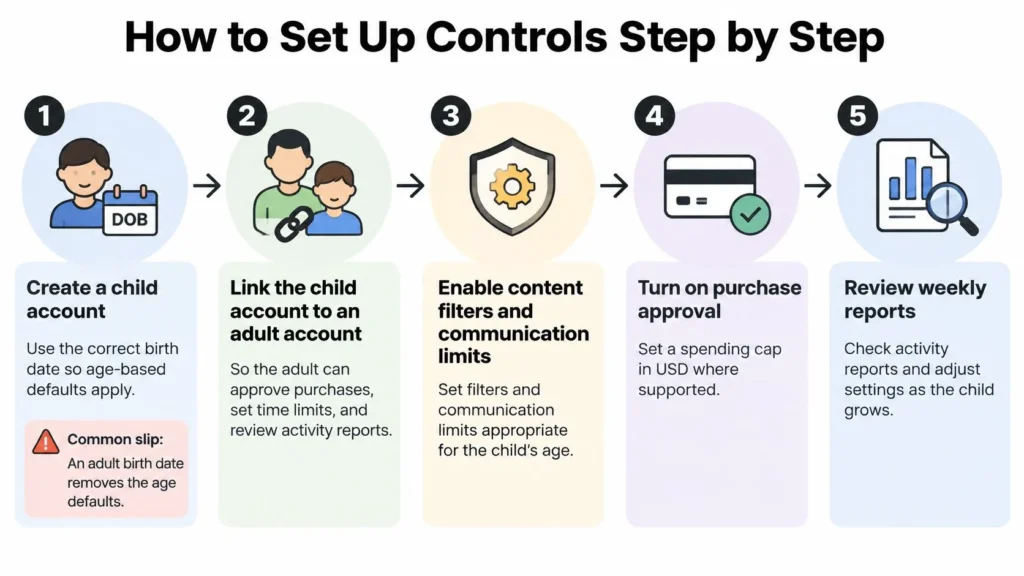
Configure the account before the permissions
Create a child account using the correct birth date. Age-based defaults rely on the account’s recorded age. Don’t enter an adult birth date to get past registration, because that can remove protections intended for younger users.
Link it to an adult family account. Use the platform’s family-management process rather than sharing your own login. This gives the adult the management permissions the service supports, such as purchase approval and activity review.
Set play allowances and downtime separately. A play allowance controls duration; downtime sets periods when play isn’t available. Configure school nights separately from weekends where the device allows it, and check that its time zone is correct.
Choose an appropriate age-rating filter. Compare the filter with the ratings on games your child already plays. If you allow an exception, approve the individual game where possible instead of loosening the entire account’s content restriction.
If console terminology is unfamiliar, the gaming for beginners guide can help you get comfortable with the basic equipment and vocabulary. Keep the child’s profile name visible while making changes so you know whose permissions you’re editing.
Secure communication and adult access
Restrict chat and friend requests. Choose approved-friends communication where supported, or disable communication for a child who isn’t ready to manage it. Check text, voice, and invitations separately rather than assuming a single chat toggle covers everything.
Require purchase approval or block spending. Look for separate options covering store purchases, in-game purchases, and subscriptions. Read any exceptions involving existing account credit before relying on the setting.
Protect management access. Set an adult PIN or password that your child doesn’t use elsewhere, and sign out of adult profiles on shared devices. Keep recovery access under adult control so a forgotten password doesn’t become a route around restrictions.
Open each game’s account and privacy menus. Check whether the game uses a publisher account in addition to the console account. Record any controls that are unavailable so you can decide whether that game fits your family’s needs.
If you prefer a video walkthrough alongside the menus, use this demonstration.
Saving settings isn’t the final step. Use the verification checklist in “Test Your Controls Before Trusting Them” to check the child’s actual experience.
Setting Play Limits That Hold Up
A sudden lockout in the middle of a team match can turn a reasonable bedtime rule into an argument about letting friends down. That doesn’t mean you should abandon the boundary. It means the child needs a predictable stopping plan, not just an unexpected blocked screen.
Treat parental controls as support for parenting rather than a replacement for it. The FTC’s guidance on keeping children safe online provides a useful starting point for staying involved in children’s online activity; at home, make that involvement concrete through clear expectations and regular conversation.
Agree on the stopping routine
Build the schedule around sleep, school responsibilities, and family commitments. Ask your child how the game ends: can they save immediately, or do they need to finish a match? Agree on when they should stop starting new matches, not only when the device becomes unavailable.
For a hypothetical teenager, you might agree on a school-night cutoff after homework and a longer weekend play allowance. At the kitchen table, explain the reason for each boundary and let the child describe what would make it workable.
A useful limit is one your child can explain back to you, including what happens when a match runs late.
Keep the protective layers distinct. The schedule manages availability, content restrictions manage access, and spending and communication controls address different risks. Don’t relax all of them because your child handles bedtime well.
Judge the outcome, not just the timer
Look for the effect gaming has on everyday life:
- Sleep: Is the child rested, or staying awake thinking about unfinished play?
- Responsibilities: Are schoolwork and ordinary commitments being neglected?
- Well-being: Are harassment, distress, secret spending, or difficulty stopping becoming concerns?
Play together occasionally so you understand what the activity involves. A cooperative building session and an upsetting competitive match may require different conversations even when they occupy similar time.
Network tools can support boundaries, but they solve a narrower problem than family agreements. Purple Shield’s explanation of how content filtering protects hotel networks offers a separate network-level example, not a substitute for a child’s account controls.
Review the schedule together after a short trial. Ask what worked, what caused friction, and whether a permission should change. Keep necessary safety boundaries while adjusting avoidable frustrations.
Privacy Settings Every Child Account Needs
Personal information means more than a name or email address. The FTC’s Xbox enforcement explanation states that gaming services covered by COPPA must obtain verifiable parental consent before collecting, using, or disclosing personal information from U.S. children under 13, and explains that image-generated avatars, biometric information, and health information can also qualify when collected with other data.
That makes privacy a separate task from limiting play time. An account can have a strict bedtime and still share more information than your child needs to participate.
Review these permissions together rather than handing over the device at the consent screen.
Start with the minimum information needed
- Voice and microphone: Disable access unless the chosen activity needs it. Distinguish permission to use the microphone from permission to communicate with other players.
- Images and camera: Avoid unnecessary photo uploads, face-based customization, and camera access.
- Location: Turn off precise location access when it isn’t required for the activity.
- Friend-list visibility: Hide connections and activity from people who don’t need to see them.
- Personalized advertising: Disable optional advertising personalization where the account provides that choice.
Read the data notice with specific questions in mind: what does the service collect, why does it need it, who receives it, and how can you request deletion? A camera permission shouldn’t be treated as a reason to accept unrelated data uses.
For practice locating these explanations, open a children’s service notice such as the Talkio Kids privacy policy from Talkio Kids and look for its collection, retention, consent, and deletion information. Then apply the same questions to the game your child wants.
Consent doesn’t replace ongoing review
In the Xbox action described by the FTC, the agency alleged collection before parental notification and consent, inadequate disclosure, and retention beyond what was reasonably necessary. The practical lesson is to examine the account’s data practices, not assume that a familiar product has handled every privacy decision for you.
Social and identity-linked features can expose additional information. Keeping that information longer also extends the period in which misuse or a breach could affect the child.
Recheck privacy and consent settings after major game updates. Remove permissions your child no longer needs, and request deletion of unused accounts rather than merely uninstalling the game.
Stranger Contact Without a Blanket Ban
Should your child play with someone they don’t know offline? The answer requires more detail than a simple yes or no: joining a cooperative match without chat isn’t the same as accepting private messages from anyone who finds a public profile.
A Checkstep overview of gaming safety, summarizing Ofcom findings and UK guidance, notes that fewer than half of parents set rules about whom their child may play with, despite concerns about stranger contact and bullying. Start by deciding what kind of contact you’re considering, not merely whether the game is online.
Contact levels from lowest to highest risk
These are practical comparisons of contact exposure, not measured safety scores. Approved friends can still behave badly, and no setting guarantees a positive interaction.
| Contact Level | Example Settings | Relative Risk |
|---|---|---|
| No contact | Single-player or offline play, chat turned off | Lowest |
| Friends-only text or voice | Only approved friends can message or talk | Low |
| Parent-approved new contacts | Each new friend request needs an adult approval | Low to moderate |
| Open lobby voice or text | Strangers can talk in shared games | Moderate to high |
| Public discoverability and messages | Strangers can find and message the child | Highest |
A blanket ban may remove activities your child enjoys with classmates or relatives. Open access, however, can allow conversations you never intended to approve. Choose a contact level for each game, based on its communication tools and your child’s readiness.
Age ratings help with content choices, but they don’t tell you how another player will behave. Nor does a friendly username establish someone’s identity.
Make approval meaningful
Ask your child who a proposed contact is, how they met, and why they want to connect. Where supported, require adult approval for additions, restrict discoverability, and keep direct messages unavailable even when shared play is allowed.
Agree that moving a conversation into another app needs a separate discussion. Someone who behaves appropriately in a moderated game space shouldn’t automatically gain access to the child’s phone number, social profile, or private messaging account.
Safety habit: Make it easy for your child to report an uncomfortable interaction without expecting an automatic loss of all gaming privileges.
Practice muting, blocking, and reporting together. Tell your child they can leave an interaction immediately rather than argue or gather evidence themselves.
Checkstep also describes Roblox’s reported plans to expand parental-control options to users under sixteen and remove social-media linking for that age group. Treat announced changes as something to verify in your child’s account, not as protection that must already be active.
Test Your Controls Before Trusting Them
A setting can exist without covering everything you expect. Coded language, voice chat, livestreams, user-generated content, cross-platform messages, and secondary accounts are all areas to examine rather than assume are filtered.
The London School of Economics and 5Rights Foundation’s child-safety assessment highlights limited independently audited evidence about the effectiveness and use of end-user safety tools. More available settings don’t automatically establish better protection.
Use this visual as a reminder of the gaps to investigate.
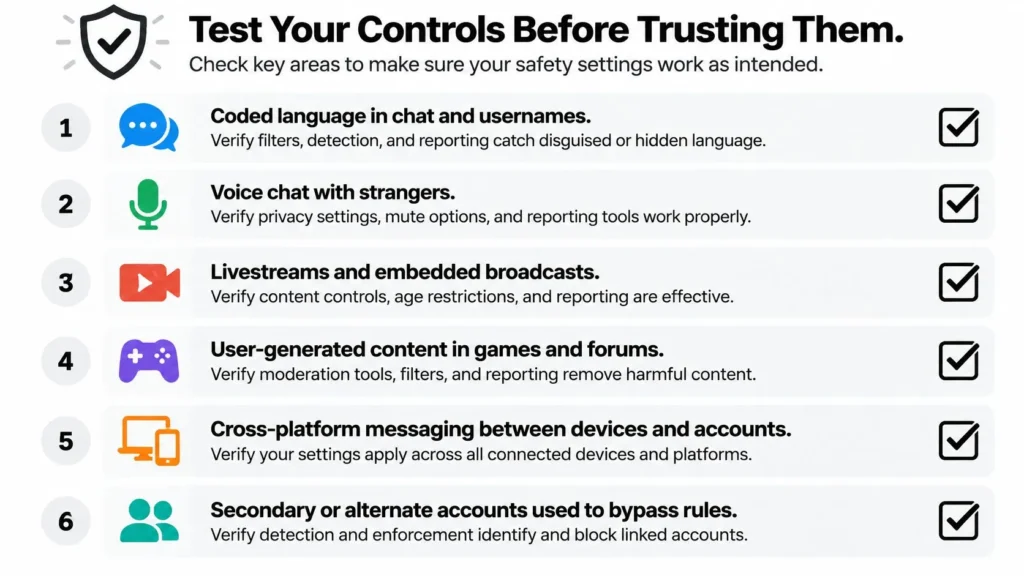
Identify the layer you’re testing
Separate console family settings, phone or PC restrictions, router filters, and game-account privacy. A router filter cannot read encrypted in-game voice, so successfully blocking a website doesn’t confirm that voice communication is restricted.
Also distinguish prevention from monitoring. Purchase approval may stop a transaction; an activity report may only tell you about it afterward. Both can be useful, but they aren’t interchangeable.
Run a controlled verification check
Tell your child you’re testing the configuration, not secretly testing their honesty. Use an adult-controlled test account and avoid completing purchases or contacting unknown players.
- Friend requests, game layer: Send a request from your test account before the child uses the device. Confirm whether it is blocked, held for approval, or delivered.
- Lobby audio, game and device layers: Check whether open-lobby voice is audible and whether the child can transmit audio.
- Purchases, account and store layers: Begin a purchase without completing payment. Confirm that the expected approval or block appears.
- Fresh profiles, device layer: Inspect a new profile’s default privacy and whether creating it requires adult permission.
- Alternate logins, device and platform layers: Check whether switching accounts avoids the intended restrictions.
- Linked messaging, app layer: Use your controlled account to check whether connected messaging features can reach the child.
- Recovery, account layer: Change the password through the normal recovery process and confirm that family restrictions remain attached.
Record what happened, not just which switches were enabled. If a necessary restriction fails, disable that feature or pause access while you resolve it.
Repeat the checks monthly and after major updates. Keep the results simple: expected behavior, actual behavior, and the change you made.
Maxi Journal offers approachable writing on gaming, education, and technology to help you understand the activities and devices your family uses. Visit maxijournal.com for gaming guides and commentary, then use your next family gaming session to review an account and test its permissions together.
Discover more from Maxi Journal
Subscribe to get the latest posts sent to your email.