94% of the 19.03 billion leaked passwords in one large breach analysis were reused or duplicated across accounts, which is why password security best practices start with elimination of reuse, not just “stronger” passwords alone (Bright Defense password statistics). If one account falls, reused credentials let attackers try the same login everywhere else, from email to publishing platforms to payment dashboards. That’s the primary risk for creators, businesses, and everyday users who juggle too many logins to manage by memory.
This guide keeps the advice practical. You’ll see what works, what wastes time, and how to apply each step in a real account setup, whether you’re protecting a personal inbox or a contributor account on maxijournal.com. The goal is simple, build a system that makes stolen passwords far less useful.
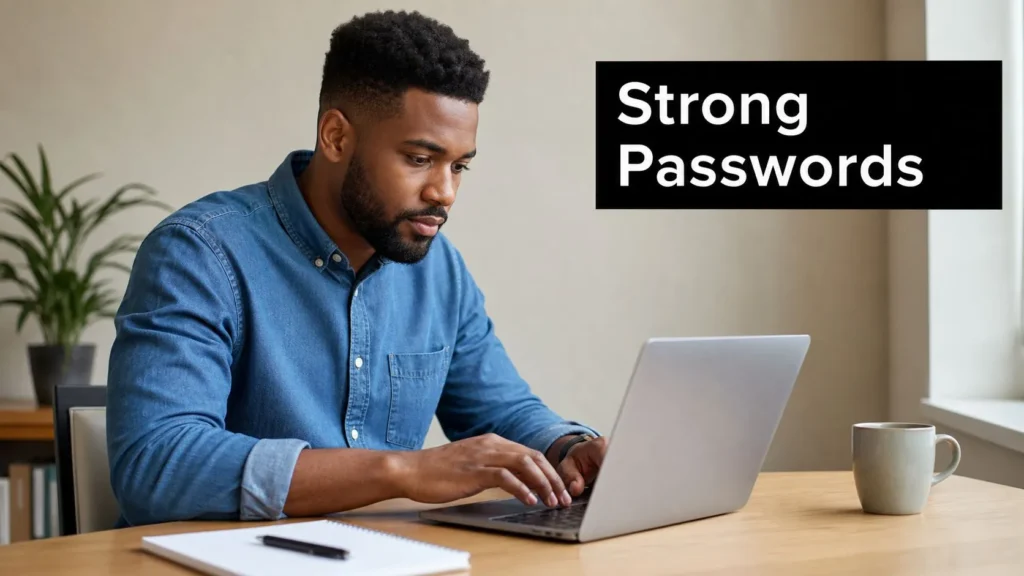
1. Use Strong, Unique Passwords for Each Account
A password only earns its keep if it’s hard to guess and useless anywhere else. That means unique credentials for every account, not “one good password with small tweaks,” because attackers love predictable variations. Consumer behavior still shows how far many are from that standard, with 73.6% reusing passwords, 79.1% relying on slight variations, and only 33.3% using auto-generated passwords (Bright Defense password statistics).
A good implementation starts with a passphrase, not a cute-looking word salad. Pick a string that’s long enough to resist guessing and random enough to avoid personal clues, then make sure it’s never used twice. For a contributor, that means the author portal, the email tied to it, and the payment account all need different credentials.
Do this in practice
- Use a passphrase structure: Combine unrelated words and symbols so the password is long and memorable, but not based on personal details.
- Keep accounts separated: Give your email, banking, social media, and publishing tools different passwords.
- Replace risky logins quickly: If a service tells you it was breached, change that password immediately.
- Protect the obvious targets first: For maxijournal contributors, separate the author portal password from the email password that resets it.
Practical rule: If you can remember the password without a manager and it’s not a passphrase you deliberately built, it’s probably too easy for an attacker to guess or reuse.
2. Implement Multi-Factor Authentication
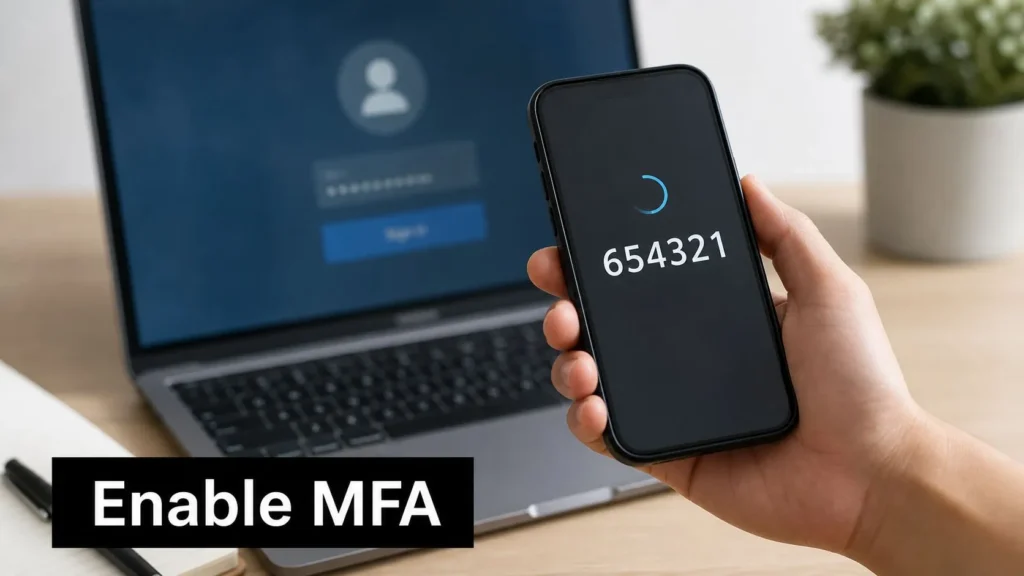
Passwords alone are a weak lock when attackers already have so many of them. MFA adds a second step, so a stolen password isn’t enough by itself. That extra layer matters because modern account takeover usually starts with compromised credentials, not with a dramatic hack.
The strongest practical setup is an authenticator app or passkey, not SMS when you can avoid it. The FIDO Alliance’s 2026 global report says 75% of consumers have enabled passkeys on at least one account, 68% of organizations are deploying, piloting, or rolling out passkeys, and 95% of employees who use MFA rely on software apps (FIDO Alliance passkeys report). That tells you where the market is moving, and where a serious account setup should go.
Set MFA on the accounts that would do the most damage if compromised, especially email, admin panels, payment tools, and publishing systems. For a site contributor, that means the login used for drafts and the inbox used for resets both need the extra layer. If you’re managing a team, teach people how MFA works before turning it on, because confused users often delay rollout or store backup codes carelessly.
A solid rollout looks like this.
- Choose an authenticator app first: Google Authenticator, Microsoft Authenticator, or Authy are common starting points.
- Store recovery codes safely: Keep them in an encrypted password manager entry or another protected location.
- Use app-based or passkey protection for critical accounts: Reserve SMS for fallback only when there’s no better option.
- Cover the highest-risk accounts first: Email, banking, publishing, and subscriber management should be the first wave.
3. Use a Password Manager to Generate and Store Passwords Securely
If you’re still trying to remember every login in your head, you’re forcing yourself back into reuse, shortcuts, and notes that shouldn’t exist. That’s why a password manager is less of a convenience tool and more of a security control. It generates unique passwords, stores them in encrypted form, and auto-fills them when you need them.
Adoption still lags behind the security case. Only 36% of U.S. adults use a password manager, while over half still rely on memorization, browser storage, or written records, and usage rose only from 34% to 36% year over year (Security.org password manager annual report). That slow movement tells you the problem isn’t awareness alone, it’s habit replacement.
Pick one manager and use it everywhere
Choose a manager with zero-knowledge encryption, then create one strong master password that you can remember. Popular options include 1Password, Bitwarden, Dashlane, LastPass, and KeePass, with Bitwarden and KeePass appealing to users who want more control and less vendor lock-in. Turn on MFA for the manager itself, because it becomes the gate to everything else.
For a contributor workflow, the manager should hold the author portal password, the email login, and any account that gets reset through that email. In a team, enterprise-grade plans help with shared access and reduce the temptation to pass secrets around in chat apps.
Never write your master password on paper, in a notes app, or in a browser-saved field. If the master password is weak, the manager is just a bigger target.
4. Regularly Update and Change Passwords, Especially After Security Breaches
Routine password rotation trained a lot of people to make weaker choices. The better approach is to stop changing passwords on a fixed schedule unless there is a clear reason to do it. The UK NCSC password guidance recommends reducing reliance on passwords where possible and using MFA, while Indiana cybersecurity guidance says routine changes should not be enforced and should be required only when compromise is suspected.
Use a trigger-based policy instead. Change a password after a breach notice, a suspicious login, a device loss, or any sign that a high-value account may have been exposed. For privileged accounts and sensitive systems, more frequent rotation can still be justified because the impact of a breach is larger and the recovery work is harder.
The execution matters. Watch breach alerts from the services you use, reset the affected account right away, and move first on email, admin tools, and financial logins. Do not replace an old password with a minor variation such as adding a new number to the end. Attackers test those patterns early. For newsletters, publishing platforms, and contributor portals, send a clear reset notice as soon as a breach is confirmed so users do not sit on exposed credentials.
A useful review habit is simple.
- Act on exposure, not the calendar: Reset credentials when there is a breach, a suspicious sign-in, or a compromise warning.
- Avoid predictable edits:
Summer2025!changing toSummer2026!is still a guessable pattern. - Prioritize the accounts that can open everything else: Email, admin consoles, and payment systems should be handled first.
- Use the reset as a full security check: Revisit MFA, recovery options, and trusted devices at the same time.
5. Avoid Common Password Mistakes and Patterns
The most dangerous passwords often look “organized.” Attackers know that humans love patterns, so they test keyboard walks, common words, names, years, and easy sequences first. In 2023, “123456” was reported as the most commonly used password globally, appearing over 4.5 million times, and 96% of the most common passwords can be cracked by tools in less than one second (Panda Security password statistics).
That’s why password security best practices have to go beyond length alone. A password like Password1 or Admin123 still fits a pattern an attacker expects. The same goes for pet names, children’s names, birthdays, anniversary dates, and anything that shows up on social profiles. If a stranger can guess it after five minutes on your public accounts, it’s not a password, it’s a clue.
Use your password manager’s breach checker or strength audit to identify weak entries. For a content creator, this matters because public bios, social handles, and personal brand details give attackers plenty of material for guesses. During onboarding, contributors should be told explicitly not to borrow names, publication titles, or bylines as password material.
Practical rule: If a password has meaning to you, it probably has meaning to an attacker too.
6. Secure Your Email Account with Extra Protection
Email is the master key for account recovery. If someone gets into your inbox, they can reset passwords, confirm logins, and move into other services that trust that address. That makes email the first account to harden, not the one you protect after everything else is already exposed.
Start with a unique password and MFA, then add recovery methods you control. If your email provider supports app-specific passwords, security keys, or passkeys, use the strongest option available and retire weak recovery paths that you no longer need. Review connected apps on a schedule, because old newsletter tools, calendar plugins, and third-party services can retain access long after you stop using them.
A dedicated publishing address is the cleaner setup for contributors. It keeps personal mail, project mail, and account recovery separate, which reduces the blast radius if one login is compromised. For site operators and writers, forwarding rules need the same attention. A bad rule can expose sensitive messages or send password resets to an inbox you do not monitor. Review account activity, connected services, and forwarding settings whenever you add a new tool or stop using an old one. For a broader approach to layered inbox protection, see defense-in-depth email protection.
Email hardening checklist
- Use a different password than every other account.
- Enable MFA immediately.
- Add a recovery phone and backup email you still use.
- Review activity logs, connected apps, and forwarding rules on a regular basis.
- Keep publishing, personal, and recovery email separate when you can.
- Treat inbox access as high-risk access.
7. Be Cautious of Phishing Attempts and Social Engineering
Most password theft doesn’t start with brute force. It starts with someone clicking a convincing message. Fake login prompts, urgent account notices, and spoofed reset emails are still the fastest way to get people to hand over credentials voluntarily. That’s why skepticism is part of password security, not a separate skill.
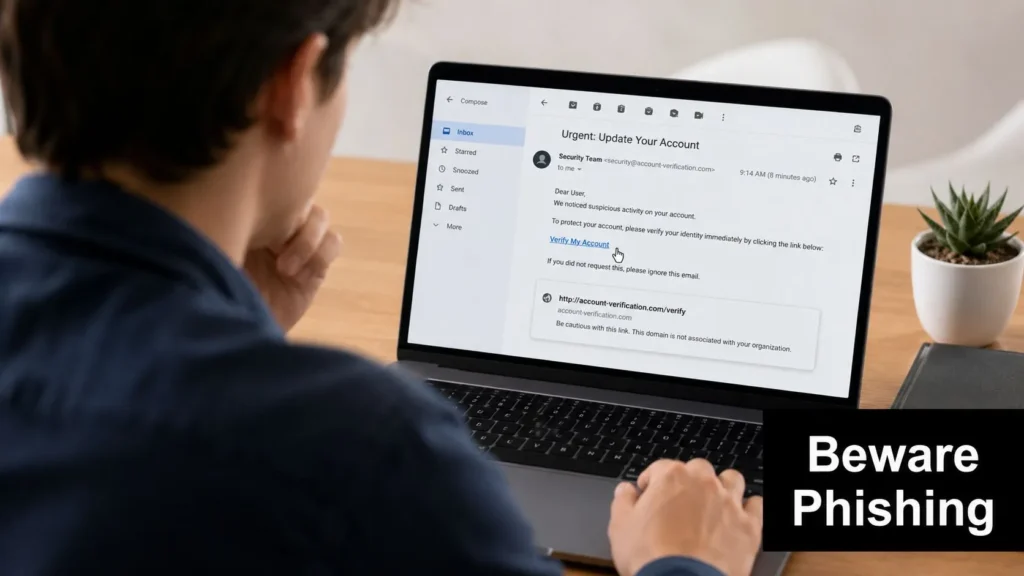
The response should be mechanical, not emotional. Don’t click login links from unexpected emails or texts, check sender addresses for subtle misspellings, and open the service directly in your browser if anything looks off. If a message says your account is locked, verify it through the official site instead of the link in the message. For contributors at maxijournal, suspicious verification requests should be reported through the publication’s own review process, including source verification.
The best defense is a habit, not a single tool. People who move slowly on password resets, order confirmations, and “urgent” security warnings are much less likely to give away an account. If a message asks for a password, treat that as a red flag immediately.
What to check before you click
- Sender address: Look for tiny spelling changes or odd domains.
- Link destination: Hover first, click later, and only if it matches the legitimate site.
- Language: Urgent wording often signals a trap.
- Request type: Real companies rarely ask for passwords by email.
- Verification path: Go to the service directly when in doubt.
For more practical cues, see how to spot phishing emails.
8. Monitor Accounts for Suspicious Activity and Unauthorized Access
An account takeover is much easier to stop early than after the attacker has changed recovery details, deleted messages, or posted under your name. That’s why login history, connected devices, and activity alerts matter. They turn a hidden compromise into something you can see and react to.
Use the tools your services already give you. Gmail has Security Checkup and login activity, Facebook shows login locations, Apple sends sign-in notifications, and many publishing platforms show active sessions and device lists. For a contributor, the author dashboard should be checked the same way you’d inspect a bank statement, because unusual access often shows up there before it becomes visible anywhere else.
Make the review routine simple enough that you’ll consistently do it. Look monthly at the accounts that matter most, especially email, payment tools, and editorial or admin portals. If something looks off, change the password, revoke the session, and turn on MFA if it wasn’t already active. Small delays give attackers time to deepen access.
A quick rule: If you don’t recognize the device, location, or login time, treat the session as suspicious until you’ve proved otherwise.
9. Use Biometric Authentication When Available
Biometric authentication makes account access faster, and that speed can improve day-to-day security. A fingerprint scan or face check removes some of the friction that pushes people toward weaker passwords or skipped protections. That said, biometrics work best as a convenience layer on top of a strong password and MFA, not as a substitute for either one.
Use the feature where your device and service already support it. iPhone Face ID and Touch ID, Android fingerprint or facial recognition, and Windows Hello all fit that model. On a phone or laptop you use often, biometric sign-in can keep protection turned on while making logins less annoying for normal use.
The main trade-off is simple. Biometrics are tied to the device, so they are useful for stopping casual access to a phone, tablet, or laptop you already trust, but they do not replace account recovery or password hygiene. That matters for people who store health, finance, or publishing apps on a mobile device, where a lost phone can expose a lot if the screen lock is weak.
For a related example of device-level protection in everyday use, see best health monitoring devices. Keep a fallback method ready, because biometric readers can fail, and you still need a secure way back into the account if the sensor does not cooperate.
Use biometrics the right way
- Turn them on only on devices you control.
- Keep your password and MFA active behind them.
- Check the privacy settings for face or fingerprint access.
- Treat biometrics as an added layer, not the only lock.
10. Create and Maintain Secure Password Recovery Options
Recovery is the part of password security that people ignore until they get locked out. If your backup email, phone number, backup codes, or security questions are weak, outdated, or easy to guess, an attacker can use them to take over the account without ever touching the main password. Treat recovery setup as part of account security, not as an afterthought.
Start with the recovery channels you control. Use a backup email address that you monitor, a phone number that belongs to you, and recovery options offered by the service only if you understand how they work and what can go wrong. Keep those details current, because an old number or abandoned inbox becomes a weak point as soon as it stops being useful to you.
Backup codes need the same care as the password itself. Store them in a password manager or an encrypted file, not in a screenshot album, a shared note, or a plain text document on a device other people can open. If a service uses security questions, avoid real answers that someone could piece together from social media, public records, or old posts. Use answers that are hard to guess and consistent enough that you can still recover them later.
Recovery paths should also be tested, not just configured. Sign in from a second device, confirm that the backup email still receives messages, and verify that your recovery codes are accessible before you need them. That small check can save you from a lockout during a breach, a lost-phone situation, or a rushed password reset on a publishing or admin account.
For sites that handle user data, recovery settings affect both access control and compliance. Review them with the same care you give other account protections, including GDPR compliance for websites, because a weak recovery flow can create both security and operational problems.
Recovery setup that holds up
- Keep backup contact details current.
- Store recovery codes in a password manager or encrypted file.
- Use answers that cannot be guessed from public information.
- Test recovery before you need it.
- Protect recovery data like account credentials, because that is what it is.
10-Point Password Security Comparison
| Practice | Implementation Complexity | Resource Requirements | Expected Outcomes | Ideal Use Cases | Key Advantages |
|---|---|---|---|---|---|
| Use Strong, Unique Passwords for Each Account | Low–Medium, requires disciplined creation | Time to create; memory or password manager recommended | Reduces credential-stuffing and limits breach impact | All personal and publishing accounts (author portals, admin) | Prevents reuse-based cascades; protects sensitive data |
| Implement Multi-Factor Authentication (MFA) | Medium, enablement and user onboarding | Authenticator apps, phones, hardware keys, admin support | Significantly lowers unauthorized access even with leaked passwords | Email, admin panels, payment systems, publishing platforms | Blocks account takeover despite compromised passwords |
| Use a Password Manager to Generate and Store Passwords Securely | Low–Medium, install and learn workflow | Password manager software (may be paid), master password, MFA | Strong random passwords and easier credential management | Users with many accounts; teams needing shared credentials | Generates/stores securely; reduces memory burden; breach alerts |
| Regularly Update and Change Passwords, Especially After Breaches | Low, habitual but organizationally heavier | Time, breach monitoring tools, password reset processes | Limits exposure window of compromised credentials | Critical accounts and after breach notifications; regulated sectors | Reduces long-term risk from old breaches; shows proactive security |
| Avoid Common Password Mistakes and Patterns | Low, education and policy enforcement | User training, password filters or checks | Fewer easily guessed or dictionary-cracked passwords | Onboarding, general user guidance, public audiences | Simple, effective mitigation against brute-force/dictionary attacks |
| Secure Your Email Account with Extra Protection | Medium, comprehensive setup required | Strong password, MFA, recovery phone/email, periodic review | Prevents cascading account compromises via password resets | All users, especially account recovery custodians and admins | Protects master-reset channel; secures communications and notifications |
| Be Cautious of Phishing Attempts and Social Engineering | Low–Medium, ongoing vigilance and training | User education, email filters, verification procedures | Reduces credential theft via deceptive messages | Customer-facing staff, contributors, general users | Low-cost, awareness-based defense that prevents social-engineering attacks |
| Monitor Accounts for Suspicious Activity and Unauthorized Access | Medium, setup and regular review | Monitoring tools, alerts, time to investigate | Early detection and faster response to compromises | High-value accounts, admin dashboards, team accounts | Enables rapid containment and provides forensic evidence |
| Use Biometric Authentication When Available | Medium, device and platform configuration | Compatible hardware and platform support | Fast, convenient authentication; reduces password reliance | Mobile apps, device unlock, frequent-access accounts | Hard to replicate, improves user experience and security |
| Create and Maintain Secure Password Recovery Options | Medium, configure and maintain securely | Backup emails/phones, secure storage for codes, trusted contacts | Prevents lockout while controlling recovery abuse | All users; contributors and admins who must retain access | Multiple recovery paths reduce risk of permanent account loss |
Building Your Digital Fortress, One Password at a Time
Password security isn’t a single trick, it’s a stack of controls that support each other. Strong, unique passwords cut off reuse, a password manager makes that habit realistic, MFA blocks simple takeover attempts, and careful recovery settings stop you from locking yourself out while you tighten everything else. The data makes the priority clear, password reuse is widespread, common passwords are still dangerously weak, and passwordless and phishing-resistant options are moving from optional to expected (Bright Defense, Panda Security, FIDO Alliance).
Start with the accounts that would hurt most if lost, especially email, banking, and publishing tools. Then move through the rest of your logins, one by one, until your weakest credentials are gone and your recovery paths are clean. That’s the difference between hoping your accounts stay safe and making them harder to break.
If you want more practical guidance like this, plus approachable writing across science, technology, health, business, education, and entertainment, visit maxijournal.com. maxijournal.com publishes daily independent articles and clear contributor-friendly content, so it’s a good place to keep learning while you strengthen the way you protect your digital life.
Discover more from Maxi Journal
Subscribe to get the latest posts sent to your email.