You’ve just typed your password, hit Enter, and a vague login message appears. The page won’t say whether the problem is your password, your device, or the service itself, so you’re left guessing while access stays blocked. That’s the moment people usually ask what does authentication error mean.
An authentication error means the system could not verify who you are during sign-in. That’s different from a permission problem, because the system never got far enough to decide what you’re allowed to do. In plain terms, the login check failed before access could be granted, and the reason might be as simple as a stale session or as broad as an identity-provider outage.
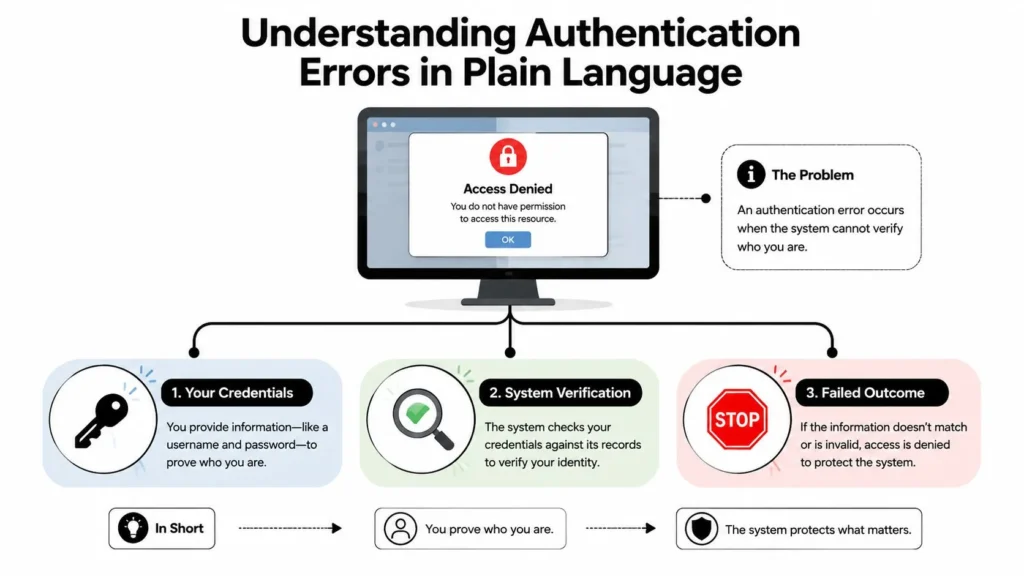
Understanding Authentication Errors in Plain Language
Authentication is the check that happens when you say, “This account is mine.” The system then compares your login attempt against what it expects, such as a password, token, session cookie, or MFA challenge. If that verification step fails, you get an authentication error, which means the system couldn’t confirm your identity.
A simple door-check analogy helps here. Identification is you stating your name at the door, authentication is the guard checking your badge or pass, and authorization is deciding which rooms you can enter after the guard recognizes you. If the guard can’t verify your badge, that is an identity-verification failure, not a “wrong room” problem.
That distinction matters because people often try to solve the wrong issue. If the system rejects your credentials, clearing a browser cookie or re-entering a token may help. If the system already knows who you are but won’t let you into a feature, that is a different category of problem.
The phrase itself is broader than many users realize. Some login failures come from bad passwords, some from expired sessions, and some from misconfigured identity providers or service outages. A useful way to think about it is that the system tried to verify your identity and hit a wall somewhere in that process.
For a real-world example, captive portals often fail with a similarly confusing message, and guides like handshake failed on captive portal show how the problem can sit between the device, browser state, and network login flow. That’s why the error message alone rarely tells the whole story.
Practical rule: if the message appears right after a login attempt, treat it as a verification problem first, not a permissions problem.
Authentication vs Authorization and Identification
People mix up these three terms because they often happen back to back. The easiest way to separate them is to ask three questions, who are you, can you prove it, and what are you allowed to do next. A passport versus ticket analogy works well, identification is the name on the passport, authentication is proving the passport is yours, and authorization is the ticket that gets you into a specific area.
| Aspect | Identification | Authentication | Authorization |
|---|---|---|---|
| What it answers | Who are you? | Can you prove it’s really you? | What can you do now? |
| Typical action | Enter a username or email | Enter a password, token, or MFA code | Open a file, dashboard, or admin page |
| What fails here | Wrong account name or no known identity | Login check fails | Access is denied after login succeeds |
| Common outcome | The system can’t match an account | Authentication error or login failure | Permission denied or access blocked |
A lot of confusion comes from error wording. A login page might say “invalid credentials,” which points to authentication, while an app after sign-in might say “access denied,” which usually points to authorization. The first problem is “prove it’s you,” the second is “you’re not allowed here.”
That’s why the fix changes with the category. If authentication failed, you look at password, session, token, device time, MFA, or account state. If authorization failed, you look at roles, policies, subscription status, or admin settings.
The fastest way to classify the problem is to ask whether the system already recognized you. If not, you’re still in authentication.
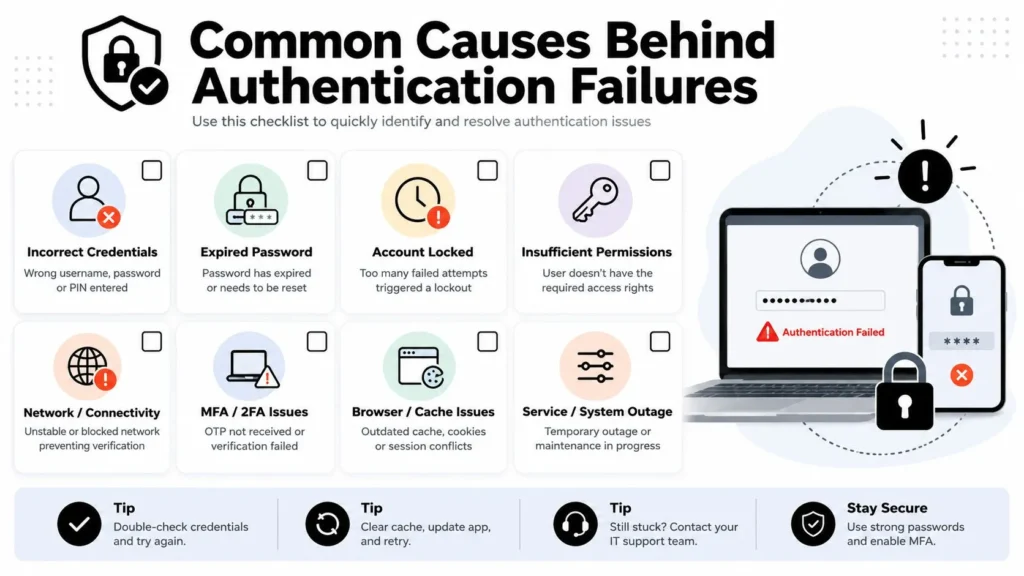
Common Causes Behind Authentication Failures
An authentication error can come from something ordinary, not just a hacked account. The most common culprit is still the simplest one, wrong credentials, but the same message can also appear when a session has expired, a token is no longer valid, or a browser is carrying stale cookies from an older login. In practice, the system may be rejecting the attempt because one piece of state no longer matches what the server expects.
A second cluster of failures comes from time and state mismatches. If the clock on your device drifts from the server clock, token validation can break, especially in OAuth and SSO flows. Cached credentials, old session data, and MFA app-password problems can do the same thing, even when the password itself is correct.
Here’s a simple way to think about the common suspects:
- Wrong password or username, the server never gets a valid identity to verify.
- Expired token or session, the system recognizes the account but no longer accepts the old login state.
- Stale cookies or cached data, the browser sends outdated authentication information.
- Clock drift, the device and server disagree about whether a token is still valid.
- MFA mismatch, the extra verification step doesn’t line up with the account’s current setup.
- Misconfigured identity provider, the login service itself is not handing off identity correctly.
Authentication failures can also come from non-malicious outages and misconfigurations. That matters because a sudden cluster of errors doesn’t automatically mean account compromise. Real-world login failure rates can fall in the 15%–40% range depending on the sector and data quality, and one industry source recommends collecting at least 3 months of login data before deciding whether a pattern is real. Those points make monitoring useful, but they also show why short-term spikes can be misleading. Corbado’s authentication error rate guidance explains that metric in practical terms.
Platform-Specific Examples You Will Recognize
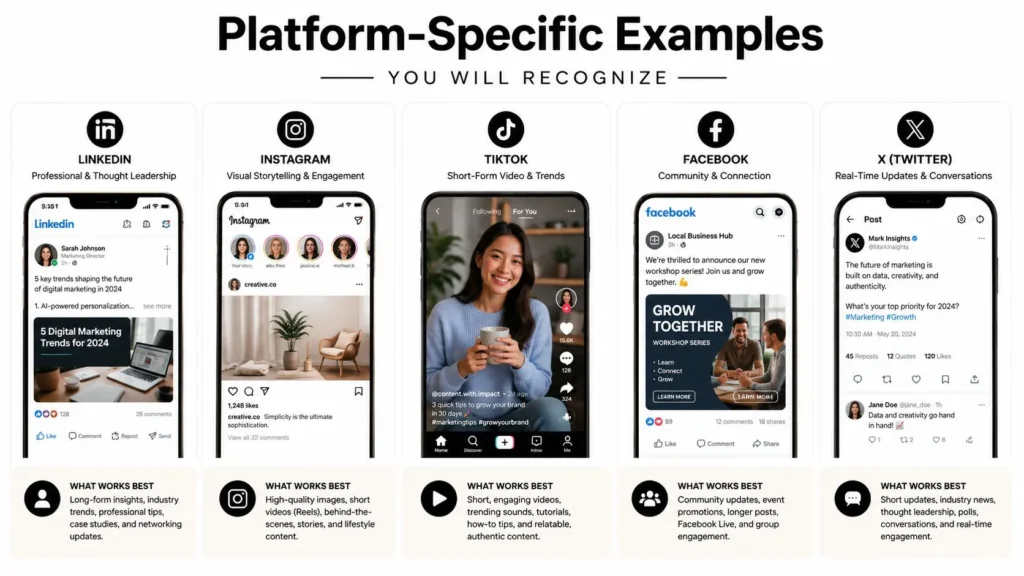
A login error looks different depending on where it appears, but the meaning usually follows the same decision tree. First ask whether the credentials are wrong, then whether the device or browser is holding bad session state, and then whether the identity service itself is having trouble. That order helps separate a user mistake from a local device issue or an outage upstream.
Web apps and browser logins
A browser-based sign-in problem often shows up as a failed login form, a redirect loop, or a message that says your session expired even though you just signed in. Some apps send you back to the login screen over and over because the browser is holding stale cookies, an old session token, or cached identity data that no longer matches the server. In Google Workspace, that can look like repeated sign-in prompts or a page that refuses to keep you authenticated after you enter the right password.
The pattern is usually easy to spot once you compare symptoms. If the same account works in a private window but fails in the normal browser profile, the browser state is part of the problem. If every browser on the same device shows the same loop, the issue is more likely tied to the account, the device clock, or the identity provider behind the login page.
APIs and token-based services
API failures often appear as 401 Unauthorized, which usually means the service did not receive a valid token, or it received one that is expired, malformed, or revoked. A 403 Forbidden response points in a different direction, because the service may have recognized the caller but still refused the action. That distinction matters when you are reading logs, because one problem is about identity proof and the other is about permission after identity has already been accepted.
AWS and other token-based services often make this clearer in the message text. You may see a response that says the security token included in the request is invalid, or a credential chain error that points to missing environment variables, an expired access key, or a bad role assumption. The server is not guessing here. It is telling you that the authentication step failed before the request could proceed.
SSH, email, and OAuth flows
SSH usually fails in a more direct way, with messages such as Permission denied (publickey), Authentication failed, or a note that the server refused the offered key. That points to a key mismatch, a disabled account, a missing private key, or a server configuration that no longer trusts the credential you presented. GitHub users often recognize this when an SSH push works from one machine but fails from another, because one machine has the right key and the other does not.
Email clients can be just as revealing. Outlook and other mail apps may report IMAP or SMTP authentication failure, or they may ask you to sign in again after a password change, MFA update, or app-password reset. OAuth and SSO flows add another layer, because the login depends on a redirect, consent screen, and token exchange that all have to complete in the right order. If the browser blocks cookies, the identity provider is down, or the account policy changed, the handoff can break even when the username and password are correct.
Different systems fail at different points, but the message still points to the same question. Did the server reject your credentials, did the device keep sending broken session state, or did the identity provider stop answering correctly? Once you separate those three paths, the error stops feeling random and starts behaving like a clue.
Step-by-Step Troubleshooting Guide
Start with the fixes that clear the most common state problems. Re-enter the username and password carefully, then clear browser cookies and cache if the error came from a web app. If the device clock is off, sync it, because token validation depends on time being close enough between client and server.
Then move to the environment around the login. Try the service from a different browser or network, because a local browser profile or network path may be carrying bad state. If another account works on the same device, the device is probably fine and the problem is more likely tied to the original account or its login state.
- Recheck credentials. Small typos and autofill mistakes are still the most common cause of sign-in failure.
- Clear browser data. Cookies and cached login state can trap you in a broken session.
- Sync system time. Token checks can fail when the device clock and server clock drift apart.
- Restart the app or browser. A clean restart flushes broken session state.
- Confirm service status. If the platform is down, your password won’t matter.
- Reset MFA or tokens. If the account uses app passwords, code generators, or OAuth tokens, reissue them.
If you’re working through a browser-based login flow, the video below is useful for seeing the order of the checks in a real troubleshooting sequence.
A good habit is to change one thing at a time. That way, if the next sign-in succeeds, you know which fix mattered instead of guessing. For deeper workflow examples, the login path often behaves much more predictably once you strip away cached state and stale tokens, which is why browser reset steps show up so often in support playbooks.
Reading Logs and Diagnostic Signals
When the quick fixes fail, logs tell you where the check broke. In browser developer tools, the Network tab can show whether the server returned a 401 or some other response, while the Console may surface script errors that stopped the login flow from completing. That difference matters, because a front-end script failure can look like an authentication problem even when the identity backend is fine.
Server logs are more decisive. Authentication logs can show failed login attempts, rejected tokens, or an ERROR state in AAA systems when the server didn’t respond to the authentication request at all. That distinction helps separate a bad password from a service-side outage or a misconfigured identity provider.
API responses also carry clues in headers. A WWW-Authenticate header can indicate what kind of proof the server wants next, while repeated 401 responses usually mean the credential presented is still unacceptable. In biometric systems, False Acceptance Rate and False Rejection Rate help teams measure the balance between letting the wrong person in and blocking the right person out.
If you need a cleaner way to read those signals, visualizing the flow helps. The same logic used in data visualization techniques applies here, because a compact timeline or response map makes the failure point easier to spot than a wall of raw logs.
Diagnostic clue: if the error appears before the request reaches the application, suspect identity, token, or gateway handling. If it appears after login, suspect policy or authorization.
Security Implications and Prevention Best Practices
Repeated authentication errors can be harmless, but they can also be a warning sign. Attackers use brute-force guessing and other credential attacks to probe accounts, so a spike in failed sign-ins deserves attention instead of dismissal. Security guidance treats authentication failure as a real vulnerability class because it can either block legitimate users or expose a path to unauthorized access.
Prevention works best when it cuts off both user mistakes and abuse. Multi-factor authentication makes a stolen password less useful, while password managers reduce typing errors and reused credentials. Session timeouts also matter, because old login state should expire before it turns into a confusing, half-valid session.
For organizations, monitoring the error pattern is as important as preventing it. A baseline of failures is normal, but an unexplained jump can point to outage conditions, a bad deployment, or coordinated login abuse. That’s where identity-provider failover and careful session management become part of reliability, not just security.
If you’re rolling out MFA in a managed environment, the Microsoft 365 MFA deployment guide is a useful reference for the practical side of enforcement and user adoption. On the policy side, pairing this with GDPR compliance for websites helps teams think about identity data, logs, and access controls together instead of as separate concerns.
When to Stop Troubleshooting and Contact Support
Stop local troubleshooting when the same error shows up on different devices, different browsers, or different networks. That pattern points away from your laptop and toward the account, policy layer, or identity provider. If the message mentions restrictions, sync conflicts in a managed environment, or a service outage, you’ve probably moved past the “clear cache and retry” stage.
The same applies when the login problem survives a fresh session and a correct password. At that point, support needs context, not another guess. If you’re on guest Wi-Fi and the service still won’t verify identity, resources like guest WiFi DNS protection tips are a reminder that network conditions can interfere in ways that feel like account problems.
Before opening a ticket, gather the details that help someone else reproduce the failure:
- Exact error text, including any codes or wording from the screen.
- Timestamp, so support can match the event to logs.
- Affected account, especially if only one user is blocked.
- Device and browser or app version, because client state matters.
- Steps already tried, so nobody asks you to repeat the same fix.
If it’s a consumer service, contact the service’s support team. If it’s a work account, contact your IT team first, because they may control policies, MFA, or identity-provider settings. If the issue is clearly widespread, the identity provider or platform status page is the right place to check.
For teams that document common issues well, a strong FAQ page saves time because it gives users a self-service path before they open a ticket. A clear support workflow often works better when paired with a structured FAQ, which is why guides like how to create an FAQ page are worth keeping handy.
If you want more plain-language tech guides like this, maxijournal.com publishes approachable explainers that turn confusing login, security, and troubleshooting topics into clear next steps. Visit maxijournal.com for more practical articles, simple FAQs, and reader-friendly coverage that helps you solve problems without guessing.
Discover more from Maxi Journal
Subscribe to get the latest posts sent to your email.